

Published on: August 16, 2022 Updated 14 times since publishing
- 🥇 Qustodio : Excellent for young kids, tweens, and teens. It lets you control web and app access, set screen time limits, track your child’s location, and monitor social media and YouTube. It also includes a panic button, Family Pause, uninstall protection, and affordable plans covering 5 or unlimited devices.
Most parents I talk to already use some kind of control — Apple’s Screen Time, Google Family Link, console limits, or app-specific settings. But in 2026, kids jump between iPhones, Androids, Chromebooks, and game consoles, and many learn to bypass basic rules with VPNs, alternate browsers, or secondary accounts.
Apple and Google have improved things. Screen Time, Family Link, and console tools make it easier to set time limits and block obvious adult content, and features like Family Link’s School Time and Apple’s Communication Safety help a lot. But they still focus on individual devices, not overall habits or whole-home networks, and they often miss VPNs, private browsers, or quiet changes that turn limits off.
I spent several months researching and testing parental control apps, from popular brands to newer tools. I focused on apps that work across different devices, are hard for kids to bypass, and still give older kids some privacy.
I found 10 apps that stand out — they offer screen-time limits that actually stick, reliable web and app filtering, device tracking, and social media monitoring for young kids, tweens, and teens. Qustodio came out on top in my tests, but I’ll also cover great alternatives for different budgets, devices, and families.
Try Qustodio (30 Days Risk-Free)
Quick Summary of the Best Parental Control Apps in 2026


🥇 1. Qustodio — Best Parental Control App for Kids of All Ages in 2026


Qustodio is perfect for families looking for customizable controls that adapt to different ages and schedules. It monitors virtually any device, including Android, iOS, Windows, Mac, Chromebook, and Amazon Fire, and it offers cross-platform tracking so you can manage your child’s devices from a single dashboard on your own phone or computer.
- Excellent web and app filtering
- Works on most kid devices
- Powerful anti-bypass tools
- Real-time location & geofencing
- Limited features on desktops
- Can drain older devices
On Android and iOS, you get the full set of tools, while on Windows, Mac, Chromebook, and Amazon Fire, the focus is more on web filtering, screen time, and activity reports. You can also pause internet access across all of your kids’ devices at once with the Family Pause shortcut, or mark important apps as Always Allowed so they still work during screen-time blocks or routines.
Qustodio has more parental control options than most competitors, including:
- Call & SMS monitoring — view your children’s calls and text messages and block specific contacts or incoming/outgoing calls. This works best on Android via the Qustodio Kids App, and Qustodio also supports calls and message monitoring on iOS via a quick desktop-assisted setup.
- Social media monitoring — get alerts about potentially risky chats on WhatsApp, Instagram (Android-only), and LINE involving bullying, self-harm, and other concerns.
- Panic button — your child can send an alert to trusted contacts if there’s an emergency or they feel unsafe.
- Activity reports — view your child’s online activity, call and SMS history, location history, and more with daily, weekly, bi-weekly, and monthly reports.
- Family Pause & Always Allowed apps — instantly pause internet for everyone during meals or homework, while still keeping essential apps like school tools or messaging with parents available.

Qustodio’s web filtering blocks inappropriate content on all major browsers, including Chrome, Firefox, Safari, and Edge. For tweens and teens, Qustodio goes further by allowing parents to block unsupported browsers like Tor or Opera, which older kids might use to access restricted sites.
It’s also very hard for kids to bypass your rules. In my tests, I couldn’t get around web restrictions with a VPN or in incognito mode. Time-based rules sync with Qustodio’s servers, so changing the device’s clock doesn’t give extra time, and the kid’s app requires your password to uninstall. You also get alerts about tampering attempts, so it’s difficult for kids to quietly remove it once it’s installed. On most modern phones, Qustodio ran smoothly in the background, though older or budget devices may see slightly higher battery usage while it enforces time limits and network filters.

You can track your kid’s location in real time with updates every 5-10 minutes, and quick links with directions in Google Maps or Apple Maps. Another great tool is geofencing, which lets you set up a predefined zone around a certain area. This could include your home, your child’s school, or football practice, and you receive alerts when your child enters or leaves the zone. The only thing I don’t like is that there’s a small delay with the notifications.
Qustodio has a decent free plan and 2 premium plans. The free plan includes basic screen time management, web filtering, and daily and weekly reports for 1 device. Basic ($4.37 / month) adds coverage for up to 5 devices, location tracking, games and app blocking, and internet connection controls. Complete ($8.04 / month) adds coverage for unlimited devices, call and SMS monitoring, social monitoring, YouTube monitoring, custom alerts, and game and app time limits.
Qustodio offers a 3-day free trial, and all plans are backed by a risk-free 30-day money-back guarantee, which gives you enough time to test it and see if it works for your family.
Bottom Line:
Qustodio is my favorite parental control app in 2026 — it’s feature-rich with useful tools for kids of all ages, highly customizable, easy to use, and works just as intended. Its web filter and location tracking are all excellent, and it comes with additional features like call and SMS monitoring, social media monitoring, a panic button, Family Pause, and Always Allowed apps for smarter control of screen time. All plans are covered by a risk-free 30-day money-back guarantee.
🥈 2. Norton Family — Best for Safe Browsing (With Excellent Location Tracking)

Norton Family comes with a ton of filtering features and is simple to use — there are predefined web filtering rules based on your child’s age, and you can choose from over 45 website content categories to fine-tune what they can see. Instead of manually whitelisting or blacklisting sites and categories, you can simply select an age group, and the app automatically applies appropriate filters. You’re free to manually customize them, too, and they worked really well in all of my tests.
- Great age-based web filtering
- Accurate location & geofencing
- Very high device limit
- Included with Norton 360 Deluxe
- No macOS parental controls
- Limited iOS monitoring features
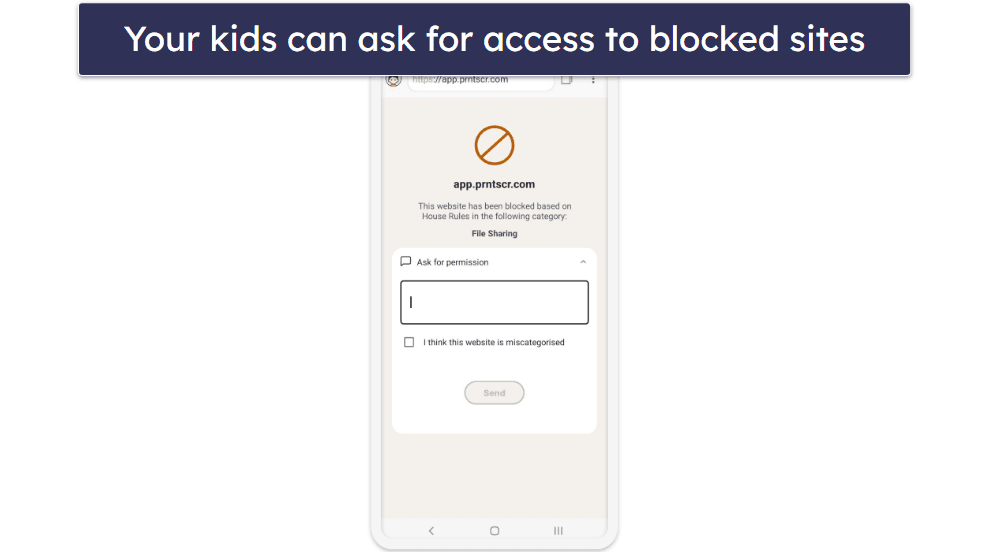
Norton Family works best on Android and Windows, where you get the full range of supervision tools — its iOS app is more limited due to Apple’s restrictions, especially around app-level monitoring. I also like that your kid can ask for access to sites that are blocked, but might actually be safe. This is very handy if you’ve blocked a lot of content, which can result in normal sites being red-flagged.
I like Norton Family’s location tracking. You can see your child’s location in real-time, set up geofences, and get notified if your kid is at a location at a certain time (for example, if they’ve arrived at school on time). If you have a teen and want to give them more privacy, you can request a check-in without constantly tracking them.
On Android and iOS, Norton Family is tough to bypass if you block all unsupported browsers. It monitors activities in incognito and private mode and enforces time-based rules through its servers, preventing kids from altering device time settings to extend usage. If your kid tries to uninstall the app, they’ll need your login credentials, and you’ll get an immediate alert about the attempt. Plus, I couldn’t bypass it with the top VPNs in my tests. Norton ran smoothly on most phones, but on older iPhones and low-end Android devices, you may see slightly higher battery usage when web supervision and location tracking are both active.
The downside is Norton Family doesn’t work on macOS, and many of its features can easily be disabled on Windows — your kid only needs to delete the browser extension (though you will get notified if this happens). Its iOS app is also more limited than on Android and Windows, with fewer app-level controls and no call, SMS, or social media monitoring. That said, these are my only real complaints about Norton Family.
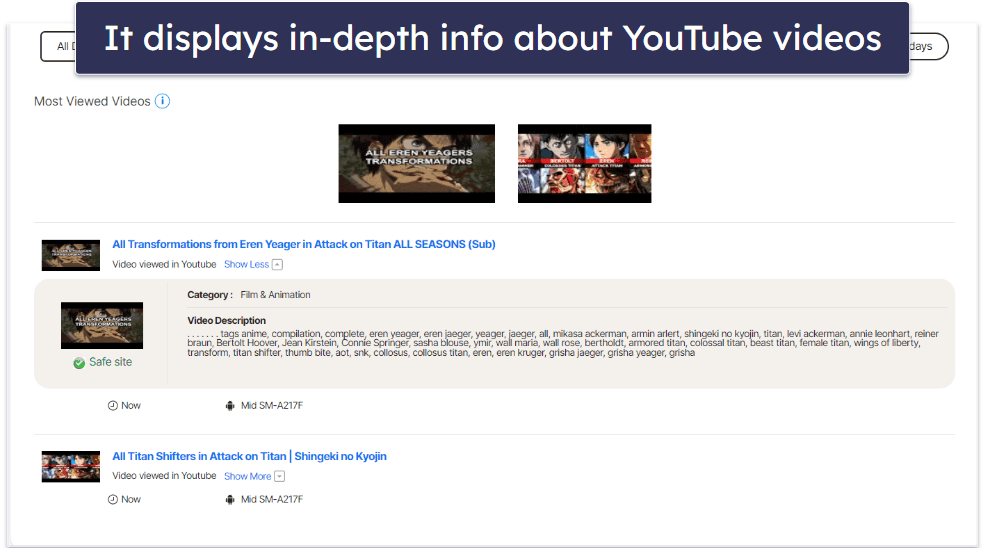
I’m a fan of Search Supervision and Video Supervision tools. The former monitors your child’s searches on Google, Bing, Ask, Yahoo, and YouTube (only the site, not the app), while Video Supervision tracks the videos on YouTube and Hulu (only on Windows). Both features performed great during testing. The one downside is they’re pretty limited on mobile and only track searches on the in-app Norton Family browser and Google Chrome (on Android only).
Norton Family is very affordable (only $49.99 / year), and supports a very high device limit — you can monitor up to around 50 devices from a single account, which is effectively unlimited for most families. You can get it for free as part of Norton’s excellent 360 Deluxe internet security package — priced at $49.99 / year*, this plan is the best antivirus plan on the market, and it comes with a firewall, web protection, device optimization tools, a password manager, a virtual private network (VPN), dark web monitoring, and much more, for up to 5 Android, iOS, Windows, and macOS devices.
Norton’s parental control app is also included with Norton 360 with LifeLock, which covers 10 devices and costs $99.99 / year*, but this plan isn’t available in all locations. All Norton purchases are backed by a generous 60-day money-back guarantee.

Bottom Line:
Norton Family includes great web filtering tools that you can automatically apply based on your kid’s age and refine using 45+ content categories. Its location tracking is accurate, there’s a geofencing option with alerts at pre-determined times, and Norton includes features for keeping an eye on your kid’s browsing and YouTube and Hulu activities. It works best if your kids are mainly on Android, Windows, and iOS phones, and you need coverage for a lot of devices. All Norton plans are backed by a risk-free 60-day money-back guarantee.
Read our full Norton Family review
🥉 3. Bark — Best for Social Media Monitoring (Non-Invasive)

Bark monitors emails, text messages, photos, videos, as well as 30+ popular apps and social media platforms, including Instagram, TikTok, Kik, Skype, Discord, Snapchat, and Reddit. It uses machine learning to scan for a wide range of potential issues, like violence, sexual content, profanity, and other inappropriate content, and it lets you adjust sensitivity levels for each of these issues.
- Monitors 30+ social platforms
- Non-invasive monitoring
- Works on unlimited devices
- Limited desktop and iOS controls
- Can’t block offline apps
Unlike top competitors, it doesn’t let you see everything your child does online. Instead, it alerts you when it detects something problematic. This means you can still give more trustworthy kids their privacy while keeping tabs on them. Bark can, however, monitor texts, email, YouTube, and 30+ apps and platforms across phones, tablets, and computers, which makes it a strong choice if most of your concerns are around social media and messaging.
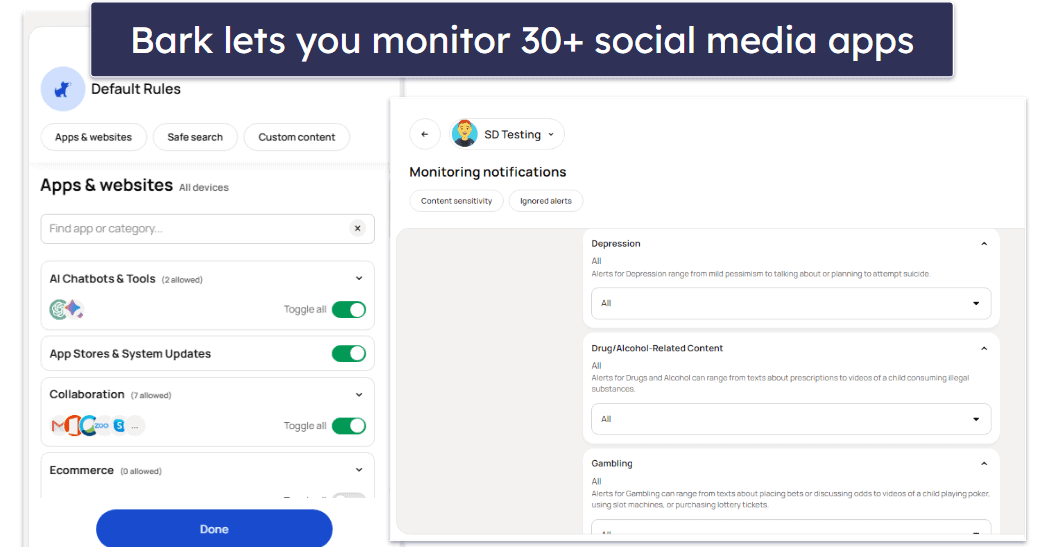
The good news is that once you connect your kid’s social media and email to Bark, it’ll monitor them across all devices. However, it works better on Android and iOS devices. You need to connect to the same Wi-Fi as your kid to get updates for iOS, and you can only monitor web searches on Windows and macOS devices with Bark.
Bark also offers hardware options for families that want wider coverage: the Bark Phone (a Samsung-based phone with Bark’s controls and monitoring built in) and Bark Home, a small device that plugs into your router and lets you manage screen time and web filtering for any device on your home Wi-Fi, including smart TVs and game consoles. The Bark Phone gives you full on-device restrictions that kids can’t delete, and Bark Home extends the same filtering rules to devices that normally can’t run parental control apps.
I like that kids can’t bypass its restrictions easily. Bark uses a VPN profile to route internet traffic through its servers on supported devices, which helps it block other VPNs and proxies. It requires a secure device code to disable its VPN, so your kid can’t just uninstall the app by guessing your password. Bark also enforces rules in incognito mode, preventing access to restricted content through private browsing.
In my tests, Bark had minimal performance impact on newer Android and iOS devices, but older phones may experience slightly higher battery drain when the VPN profile is active. That said, it can’t block offline apps, unlike Qustodio, so there’s nothing to stop your kid from playing a game that doesn’t require an internet connection.
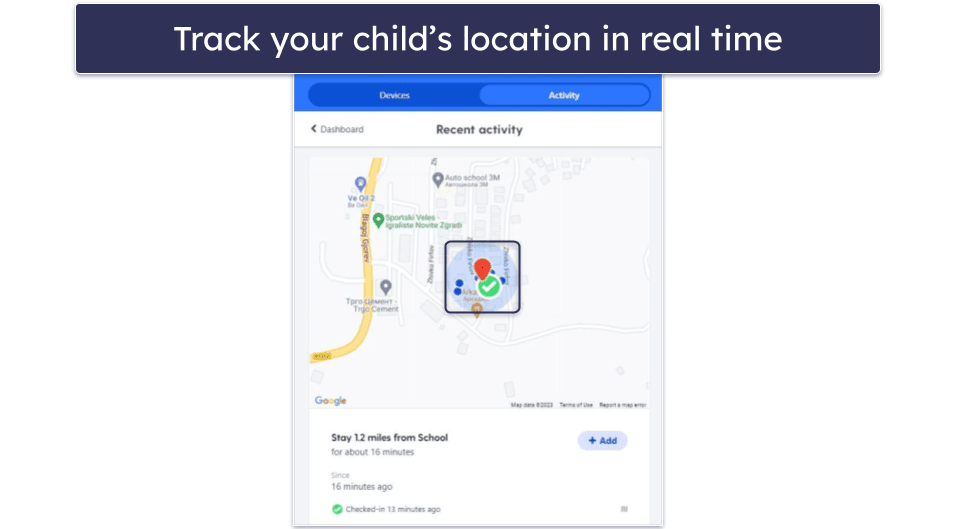
Bark has a pretty accurate location-tracking feature that shows all of your kids’ locations on 1 map in real-time. It gives you directions to your child’s current location and allows you to request a live check-in if the real-time tracking is too invasive.
Bark’s Premium plan includes all of the features mentioned above for $14.00 / month and lets you install the app on as many devices as you want, which is pretty generous, but there’s no money-back guarantee.
Bottom Line:
Bark is a non-invasive parental control app that monitors 30+ popular social media sites and other apps — it connects directly to your child’s accounts and sends alerts if it detects anything problematic. This makes it excellent for older and more trustworthy kids. It also lets you see where your child is in real time on a map and request check-ins. Families that want a more complete ecosystem can also use the Bark Phone for tamper-proof rules on a kid’s own device and Bark Home to extend filtering and screen-time limits to everything on the home Wi-Fi. There’s a 7-day free trial, but there’s no money-back guarantee.
4. FamiSafe — Best for Older Kids (With Driving Safety Monitoring)

FamiSafe lets you monitor your child’s driving habits and make sure they’re driving safely and responsibly. It provides detailed driving reports that include average/highest speeds, distance, time spent driving, and even things like the number of times speeding and the number of hard brakes. You can also see trips on a map, which makes it easier to spot risky routes or patterns.
- Advanced driving safety reports
- Strong cross-platform device support
- Real-time location and geofencing
- Easier to bypass on Chromebooks
- iOS call/SMS is more limited
In addition, you can receive alerts when your child is driving dangerously — for example, you can set the maximum speed you’d like them to drive and get alerted every time they exceed that speed.

If you have serious concerns, FamiSafe also monitors calls and text messages on Android and iOS. It also includes a Screen Viewer that takes a screenshot of your kid’s screen, which is convenient for tracking apps that it can’t monitor directly (like checking snaps on Snapchat or quickly seeing what they’re doing without reading every message). The Screen Viewer can capture scheduled or event-based screenshots, giving you real-time visibility even on apps FamiSafe can’t directly integrate with. However, I wasn’t impressed with the social app detection feature — it didn’t work for some apps that I tested, like Discord.
When it comes to location tracking, FamiSafe is one of the best on the market. When I tested it, it displayed my test phone’s location in real time with perfect accuracy, and it allowed me to set geofenced areas that were better than Qustodio, but worse than Norton Family. FamiSafe allows kids to see their parents’ location too, which can be reassuring if they’re traveling alone or late at night.
That said, a tech-savvy kid can easily bypass time restrictions on Chromebook, which is disappointing. The good news is, I couldn’t use a VPN to get around content restrictions on PC and mobile when I tested it, nor could I get around time-based restrictions on these devices. FamiSafe requires your password or PIN for uninstallation, so your kid can’t just get rid of the app on their device. Performance was smooth on most phones, but real-time driving reports and Screen Viewer can cause slight battery drain on older Android devices.
There are several premium plans available with different subscription lengths. Depending on the plan you pick, you can also cover a different number of devices. The monthly plan costs $9.99 / month and provides coverage on up to 5 devices, whereas the quarterly plan ($6.67) covers 10 devices, and the annual ($4.99 / month) plan covers unlimited devices.
All of the plans are covered with a 7-day money-back guarantee, and its annual plan includes a 3-day free trial.
Bottom Line:
FamiSafe comes with a unique driving safety monitoring feature that lets you view how your child is behaving on the road and get alerts when they drive too fast or too aggressively. It also lets you monitor your kid’s calls and text messages, takes regular screenshots of their screens with Screen Viewer, and allows your child to request and view your location. FamiSafe is easy to use and offers a 7-day money-back guarantee.
5. Mobicip — Best For Scheduling Screen Time (With Custom App and Web Filters)

Mobicip is a great option for customizing your child’s screen time. The app lets you create custom web and app filters for certain times of the day and certain weeks in 5-minute increments — you can use this to stop your kid from using gaming or entertainment apps and sites during school or homework time.
- Flexible screen-time schedules
- Great for large families
- Free plan plus cheap tiers
- Limited social media monitoring
- Slightly more complex setup
You can also fine-tune what’s allowed during each schedule by blocking specific keywords and phrases, or even exempting trusted home or school Wi-Fi networks from Mobicip’s filter, so stricter rules only apply where you actually need them. There’s also a very convenient Vacation Mode that allows you to set app and web filtering that only lasts for a couple of days, and a Family Mode that instantly locks your kids’ devices for a set period.
Mobicip’s web filtering is pretty good. I like its Whitelist-Only Mode, which is great if you have very young kids and you only want to let them visit a couple of sites. For older kids, you can create your custom filters by keywords — the app will block any site that features the word or phrase you enter, and you can now build those rules directly inside specific schedules for even more precise control over homework time, bedtime, or weekends These newer phrase-level filters and Network Exemptions give Mobicip more fine-tuned control than it had in previous years.
Mobicip makes it very tough for kids to get around restrictions by blocking unauthorized VPNs and applying web filters across most browsers, including incognito mode. It enforces time limits by syncing with its servers and requires a secure PIN for uninstallation on mobile. However, it lacks uninstall protection for Windows and macOS (unless you create a non-admin user account for your kid), which means your kid can remove it from these devices if they get access to an admin account.

On Android and iOS, Mobicip ran smoothly during my tests, though older Android devices may see slightly higher battery usage when detailed schedules and filtering rules are all active. Mobicip also allows you to monitor your child’s social media apps. This works with Facebook and Snapchat and alerts you if it finds something inappropriate or concerning in your child’s social media texts or images. I think it’s really convenient that Mobicip sends you a snapshot of the offending content, but I still prefer Qustodio and Bark since they work with more platforms.
Mobicip has great location tracking. In my tests, it accurately detected where my test device was and alerted me when my test device entered or exited the geofenced area.
Mobicip offers 3 plans. The Lite ($2.99 / month) and Standard ($4.99 / month) plans offer basic functionality and device monitoring for up to 5 or 10 devices, respectively. The Premium plan ($7.99 / month) allows up to 20 devices and unlocks additional features like social media monitoring and setting time limits on app categories. There’s also a free plan that’s limited and lets you monitor up to 2 devices. The paid plans include a 7-day free trial and a 30-day money-back guarantee.
Bottom Line:
Mobicip has a highly customizable scheduling feature and a unique Vacation Mode for more lenient controls. Its newer Network Exemption and phrase-based filters inside schedules make it easier to relax rules on trusted Wi-Fi networks while staying strict elsewhere, and you can still fall back to Whitelist-Only Mode for very young kids. There’s a decent social media monitoring feature, it’s hard to bypass on mobile, and Mobicip’s plans are backed by a 30-day money-back guarantee.
6. mSpy — Best for Monitoring All Your Child’s Online Activities

mSpy has powerful surveillance features that are great for tracking online interactions on Android and iOS devices. The app lets you see what images your child is sharing, read their messages and even their emails, and look at the conversations they’re having on a long list of social media apps. Some plans also include a Live Screen Streaming feature, which lets you view the device’s screen in real time from your mSpy dashboard, so you can see exactly what’s happening on the phone at that moment.
- Very detailed phone monitoring
- Tracks GPS & location history
- Advanced keylogger & screen recorder
- Very intrusive for older kids
- Advanced features need jailbreaking
- Refund policy is very strict
That’s why I only recommend mSpy for parents who have serious concerns — this app is more invasive than most parental control apps, which typically only allow you to see snippets of inappropriate content, like Qustodio and Bark.
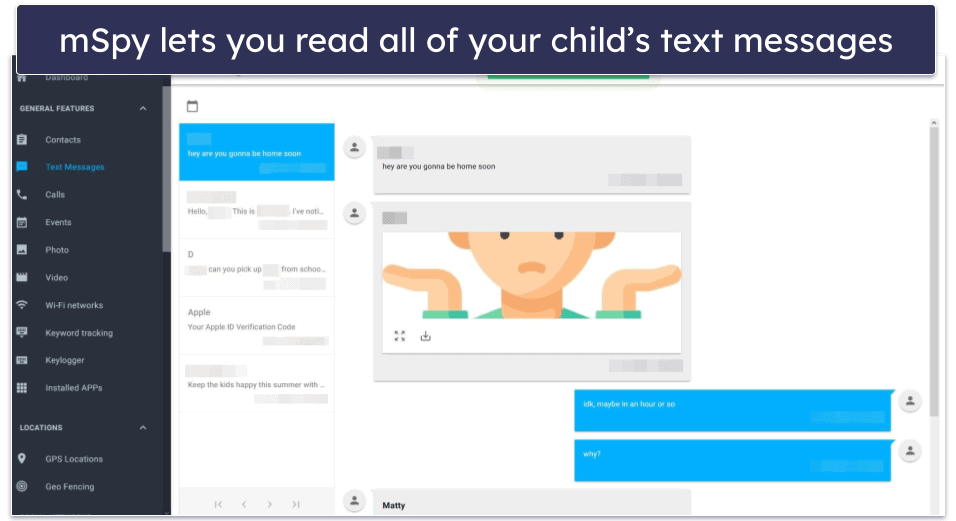
What I found impressive was mSpy’s screen recorder feature, which takes screenshots of your child’s phone when a change occurs in an app on your kid’s Android — like when they get a new notification or a message. There’s also a keylogger that tracks everything your child types on their phone, from their SMS messages to their browsers. You can even set up the app to alert you when they use a particular word or phrase.
Your kid can’t uninstall mSpy — once you connect your device to your kid’s phone, it removes all traces. There’s no app that your kid can see or remove to signal you’re monitoring their device. The only way to get rid of mSpy’s monitoring is to disconnect your child’s device from your account. Because of how stealthy and invasive mSpy is, you should only install it on a device you own (like your young child’s phone) or with explicit consent, and always check your local laws before using it.
One of its biggest downsides is that you have to jailbreak or root your child’s phone to be able to use a lot of these features — these include viewing watchlist contacts, Instagram pictures, and monitoring watchlist words for iMessages. mSpy’s more advanced features also have a higher performance cost — older Android and jailbroken iPhones may see faster battery drain when Live Screen Streaming or constant screenshot capture is active.
mSpy offers 4 plans — the Premium ($11.67 / month) plan includes call, SMS, and email monitoring, plus location tracking, the keylogger, and screen recorder for 1 device. The Family Kit ($34.00 / month) plan monitors up to 3 devices, and there are also mobile-only plans, iOS Ultimate Kit ($40.83 / month) and Android Extreme ($33.99 / month), that cover 1 device each. Unlike most of the parental app providers on my list, it doesn’t offer a free trial or a free plan, and there’s only a limited 14-day money-back guarantee.
Bottom Line:
mSpy is a great choice for parents who are seriously worried about their child’s online and offline interactions and are comfortable with a much more invasive, stealth-style monitoring approach. It’s one of the few apps that lets you read your child’s emails, view their sent images, review chats and keystrokes, and, on some plans, even watch their screen in real time with Live Screen Streaming. It also has decent location tracking, web tracking, and excellent app-level monitoring, but there’s no free trial and a very strict, limited money-back guarantee.
7. McAfee Safe Family — Great For App Management (Very Intuitive)


McAfee Safe Family filters apps by 50+ categories, such as Education, Entertainment, and Shopping. I particularly like how there are even different gaming categories — for example, you can whitelist puzzle games but block your kid from accessing casino games. On top of that, it lets you prevent your kid from downloading new apps on their devices, which gives you a lot of control over the apps your kid uses on their devices. Safe Family also supports an unlimited number of your kids’ devices, so bigger families don’t have to worry about hitting a device cap.
- Unlimited child device coverage
- Easy, beginner-friendly interface
- Included with McAfee 360
- No macOS parental controls
- Fewer features than top apps
In my tests, I couldn’t get around the web filters in incognito mode or with a VPN, so you won’t have to worry about your kid finding ways to avoid your restrictions. There’s also a really handy Digital Time Out option in the McAfee app that lets you pause your child’s internet access with a tap — perfect for device-free dinner, homework time, or when you just need everyone offline for a bit Safe Family ran smoothly on newer Android and iOS phones, though older Android devices may see slightly heavier battery use when geofencing and category filters are both active.
It comes with uninstall protection, too, that requires a parent’s permission and provides alerts for any tampering attempts. But it’s a little disappointing this feature isn’t available on iOS — if you need a parental control app for iOS, I recommend Qustodio.

McAfee Safe Family’s location tracking is very accurate. I like that there’s a geofencing feature, too — in my tests, it always alerts me when I arrive at the setup locations with my test device on it. There’s a check-in function, too, that allows your kid to proactively share their location. That said, you don’t have an option to turn off the real-time location tracking for a less invasive approach like with Bark.
McAfee Safe Family is available as a standalone product for $49.99 / year, and you can also get it with 3 different bundles, including McAfee+ Premium ($49.99 / year), McAfee+ Advanced ($89.99 / year), and McAfee+ Ultimate ($199.99 / year), which includes identity theft protection, as well as a 30-day money-back guarantee.
Bottom Line:
McAfee Safe Family has great app management options. It filters apps by 50+ categories, lets you block new app installs, and supports unlimited child devices, which is ideal for larger families. You also get accurate location tracking, solid geofencing, a check-in feature, and a convenient Digital Time Out to pause internet access on demand. It offers great value as part of McAfee’s antivirus and McAfee+ family bundles, which come with a 30-day money-back guarantee.
Read our full McAfee Safe Family review
8. Kaspersky Safe Kids — Great for Setting Daily Time Limits

Kaspersky Safe Kids has a great daily time limit tool that lets you set specific times when your children can’t use their devices. While most top competitors only let you set time limits in set increments, Kaspersky allows you to set any time limit you want. You only need one My Kaspersky account to cover all of your children’s devices, and you can create unlimited child profiles, which is really convenient for bigger families.
- Very powerful web filtering
- Low-cost full-feature plan
- Flexible time and app limits
- Not supported in the US
- Limited features on iOS
- No call or SMS monitoring
I like how you can customize how you monitor your kids’ screen time. You can choose to only receive reports about how much time your kid has spent on their device, send them a warning if they reach the daily limit, or block access to their mobile device once their time is up. You can also choose which apps can bypass the daily time limits. This allows your kid to open apps like Zoom to join an extra class or talk to their tutor/teacher even after they’ve used up their screen time.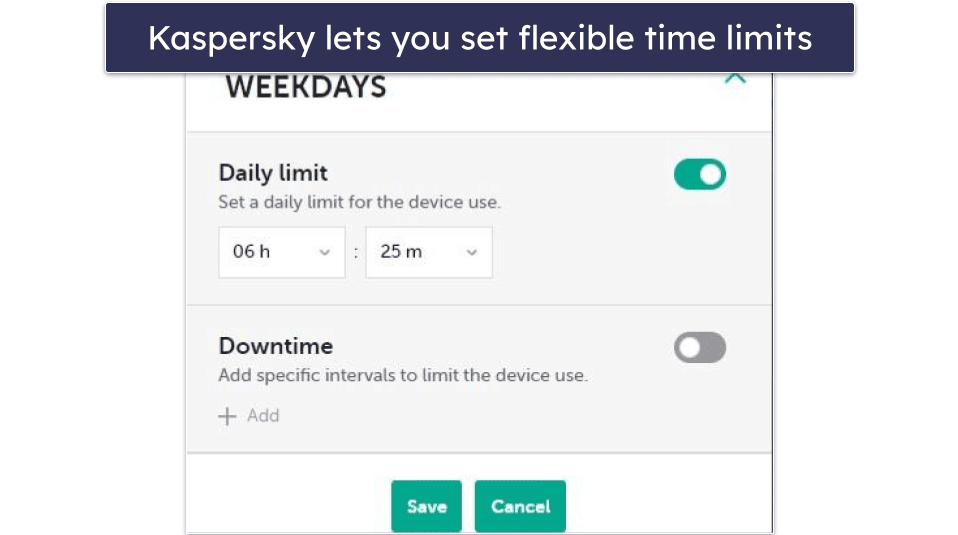
Kaspersky offers the full feature set on Android and Windows, while iOS supervision is more limited, especially for app blocking and background activity monitoring. Kaspersky also has very accurate real-time location tracking, which is great if you need to closely follow your child’s movements. I also like that it lets you create geofenced areas up to 62.1 miles or 99.9 kilometers, which is a lot more than most parental control apps, and sends you alerts if your kids leave the geofenced area.
Kaspersky Safe Kids also lets you see your child’s YouTube search history and what they watched in the browser, and it can send alerts if their device battery is low so they don’t end up unreachable with a dead phone. Its web filtering is very good, too. Plus, the app lets kids ask for access to a blocked site from the app.
Kaspersky Safe Kids social monitoring only allows you to see your child’s total number of friends and their timeline on the Russian social media site, VK. If you’re looking for a good parental control app for monitoring social media sites, I prefer Bark — it can monitor 30+ social media platforms. I’m also a little disappointed that Kaspersky is missing call and SMS monitoring, which Qustodio has.
Plus, Kaspersky software (including Safe Kids) can no longer be sold or used by US customers, and updates for existing US installations were cut off after late 2024 — so families in the US should pick another parental control app.
Performance was smooth during testing, though older Android devices may experience modest battery drain when large geofences and continuous location tracking are enabled.
Kaspersky Safe Kids costs $28.06 / year, but you can also get a free 1-year subscription with Kaspersky Premium, which includes one of the top antivirus programs on the market. Kaspersky backs all of its paid plans with a 30-day money-back guarantee.
Bottom Line:
Kaspersky Safe Kids has strong time limits and app controls, plus extras like YouTube search/watch reports, low-battery alerts, and flexible location tracking with very large geofences. You can protect unlimited child profiles and devices from 1 account, but social media monitoring is limited to VK and there’s no call or SMS monitoring. It’s no longer sold or supported in the US due to a 2024 government ban on Kaspersky software, but in supported regions it offers good value and a 30-day money-back guarantee.
Read our full Kaspersky Safe Kids review
9. Eyezy — Good for Unrestricted Social Media Monitoring

Eyezy gives you unrestricted access to your kid’s social media conversations thanks to its Social Spotlight feature. It’s designed to surface chats from popular apps like WhatsApp, Telegram, Snapchat, Instagram, Facebook Messenger, iMessage, and more, so you can see who they’re talking to and what they’re saying in one dashboard. It also lets you monitor regular text messages and other built-in messaging apps, which makes it useful if most of your kid’s conversations happen in DMs.
- Deep social media monitoring
- Powerful keylogger
- Custom keyword-based alerts
- No screen-time scheduling tools
- Limited desktop & web support
- Refund only for technical issues
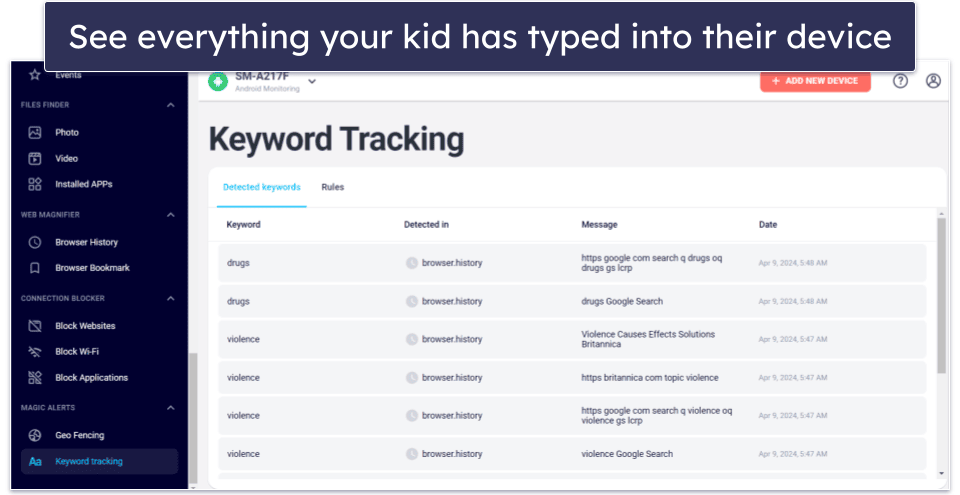
Eyezy also has a screen recorder feature that takes screenshots of your kid’s activity on messaging apps like Snapchat and WhatsApp, and some configurations let you record their screen while they’re using certain apps. On top of that, it comes with an advanced keylogger (Keystroke Capture) that shows you every keystroke your child enters on their device.
You can also set up Magic Alerts for specific words or phrases so Eyezy sends you alerts when your kid types or receives them — I still like FamiSafe more here because its suspicious-word lists integrate better into the main app and feel easier to tune screen recording and keystroke capture can cause noticeable battery drain on older Android devices, especially when running continuously.
Eyezy has a phone analyzer that allows you to see your kid’s phone contacts and shows you their incoming and outgoing calls. But there’s no way to block phone calls like you can with Qustodio, and it doesn’t send you any alerts when your kid adds or removes contacts. Eyezy works best on Android, where most of its monitoring tools function fully — iOS requires a jailbreak for many advanced features.
Eyezy doesn’t use classic uninstall protection, but it does try to stay hidden. On Android, it installs under a generic name like “Update Service” and runs in the background without a normal home-screen icon, so most kids won’t notice it straight away. That said, it can still be removed on the device itself by going into Settings → Apps → Update Service → Uninstall, and then unlinking the phone from your Eyezy dashboard — so it isn’t literally impossible to remove from the phone.
Eyezy offers 3 plans. The Premium plan ($7.99 / month) includes most features, including social media monitoring, for 1 device, but requires jailbreaking. The Ultra plan ($19.99 / month) doesn’t require jailbreaking, and the Family Kit plan ($57.13 / month) monitors 3 devices. Eyezy doesn’t have a free plan or a free trial, and its 14-day money-back guarantee only applies to unresolved technical issues.
Bottom Line:
Eyezy offers powerful social media and message monitoring through Social Spotlight, plus detailed keystroke capture, Magic Alerts for risky keywords, a phone analyzer, and a solid screen-capture tool — so it’s best suited to parents who want deep insight into what their older kids are saying and who they’re talking to. It still lacks basics like screen-time scheduling and desktop support, there’s no free trial, and only a limited 14-day money-back guarantee for technical issues.
10. Net Nanny — Advanced Web Filtering For Teens + YouTube Monitoring

Net Nanny offers excellent web filtering in real-time — instead of blocking entire websites like most parental control apps, Net Nanny uses an AI system that analyzes the context of individual pages and only restricts access to inappropriate sections. It can also mask profanity on pages in real time instead of blocking them outright, which is great for older kids who need access to news or research sites that sometimes use strong language. This is perfect if you have teens, as you don’t have to set rigid restrictions but can still make their browsing kid-friendly.
- Real-time AI web filtering
- Profanity masking on safe sites
- Detailed YouTube activity reports
- Limited geofencing & location tools
- No uninstall protection on iOS
- Safari filtering is more restricted
Net Nanny stops your kid from disabling the restrictions by locking settings, and it requires a password for uninstallation, so your kid can’t just delete the app. On supported devices, it also uses a VPN/profile approach for filtering that automatically turns back on if someone tries to disable it, which helps prevent more tech-savvy kids from simply switching the protection off. However, uninstall protection is not available on iOS (with Qustodio, it’s available on all apps). Net Nanny works best on Android, Windows, and macOS — iOS has more limited filtering because Safari can’t be fully monitored or controlled.
I’d also like to see Net Nanny significantly improve its geofencing feature, as it only alerts you when your child arrives and leaves specific addresses, but you can’t set up predefined areas. Norton Family lets you set up geofenced zones to 2 miles or 3,200 meters!
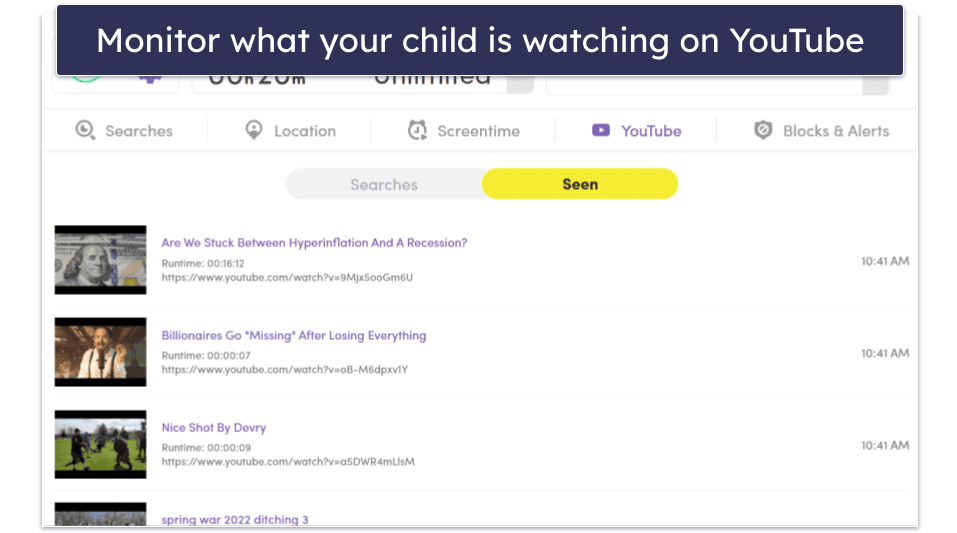
Its YouTube monitoring is excellent — it shows you what your child searched for, the name and the thumbnail of each video, and how long your child spent watching every video. Performance was smooth overall, though older Android phones may see a slight battery impact when AI-based page scanning is active on every website.
Priced at $4.58 / month, the Family Protection Pass for up to 5 devices is the best-value plan, but families with more devices should also check out the Family Protection Pass for 20 devices, which costs $7.49 / month. There’s also a plan for a single desktop device, but I don’t think it’s worth it. Net Nanny covers all plans with a 14-day money-back guarantee.
Bottom Line:
Net Nanny has an excellent real-time web filter that can even mask profanity on otherwise safe pages, plus plenty of customization for older kids and teens. Its protections are harder to switch off than most built-in tools, and it offers detailed YouTube monitoring alongside decent screen-time supervision. Net Nanny backs all plans with a 14-day money-back guarantee.
Read our full Net Nanny review
Bonus. Aura — Great For Controlling Your Kid’s Gaming in the US

Aura is great for controlling how much time your kid spends gaming — but it only works in the US. The parental control app lets you set hour-long time limits for video games only, which gives you control over how much your kid spends gaming without stopping them from gaming altogether. Its web and app filters are powered by Circle’s parental control technology, so you can block whole categories of risky content (like dating, gambling, or VPN sites) and customize rules for each child profile. Aura works best on Windows and mobile devices, but its stricter gaming limits are mostly tied to Windows because that’s where its Safe Gaming detection runs.
- Family-friendly parental controls
- 60-day money-back guarantee
- Only available in the US
- Fewer features than dedicated apps
It also lets you create a safe gaming environment for your kids via its Safe Gaming feature that’s available on Windows. This tool monitors 200+ online games such as Minecraft, Fortnite, and Roblox for bullying language and sends you alerts if it detects problematic content. You’ll also get a full report detailing the threats the app has detected, a threat severity score, and how much time your kid has spent gaming.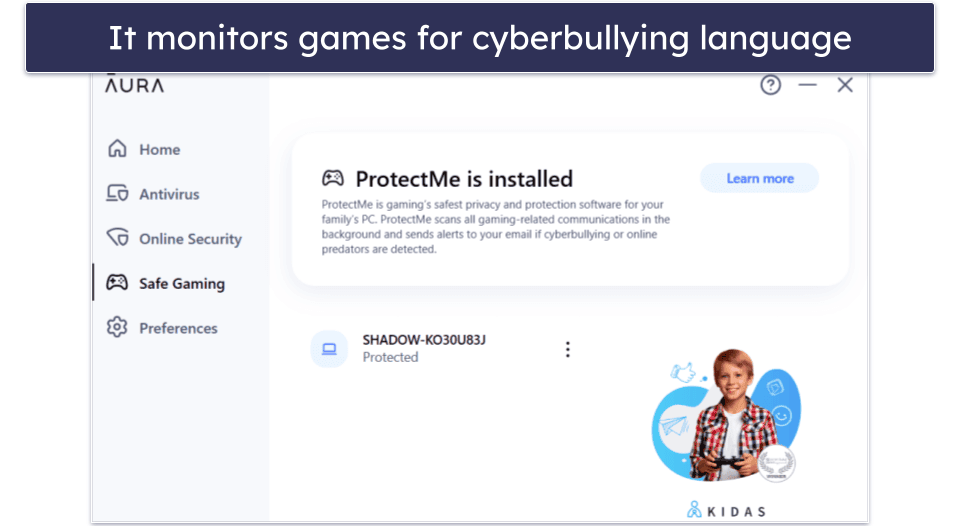
On mobile, you can pick Child mode, which has great default restrictions for young children, or Teen mode, which blocks explicit content and mature content only. Aura also includes Balance, an AI-driven dashboard that summarizes your child’s screen-time habits and digital “mood” trends, so you can spot changes in their online behavior without reading every message yourself. Balance’s analysis runs in the background and has minimal performance impact during my tests, even on older Android phones. That being said, I’d like to see an option for your kid to ask for access to a blocked site, like with Norton Family.
Unfortunately, you can’t purchase the parental controls as a standalone product. Instead, Aura’s parental controls come bundled with its Family plan, which costs $8.33 / month — it also includes an antivirus, Safe Gaming tools, and each purchase is backed by a 60-day money-back guarantee. Aura covers 10 devices per adult (up to 5 adults) and allows you to monitor an unlimited number of devices.
Bottom Line:
Aura is great for US users only who need to control their kids’ gaming habits. It fosters a safe gaming space by monitoring for bullying on Windows, and its Circle-powered web and app filters work well across your kids’ devices. It’s only available as part of Aura’s Family bundle, which is backed by a 60-day money-back guarantee.
Quick Comparison Table
Are Apple Screen Time & Google Family Link Enough in 2026?
Apple’s Screen Time and Google’s Family Link are much stronger than they used to be. They let you set app limits, block explicit content, approve downloads, and get basic reports, and for very young kids who mostly use a single iPad or Android phone, that can be a good starting point.
Most families start to struggle with everything beyond that simple setup. Mixed-device homes can’t manage iPads, Android phones, Windows laptops, and Chromebooks from one dashboard, teens quickly discover VPNs and alternate browsers to slip past limits, and built-in tools don’t offer true router-level control for TVs, consoles, and shared devices on the home Wi-Fi.
That’s where a dedicated parental control app still adds real value in 2026. A tool like Qustodio gives you a single cross-platform dashboard, stronger anti-bypass tools (like server-enforced time limits and blocking unsupported browsers), and more detailed activity and location reports than Apple or Google provide. And if you pair a tool like Qustodio with simple router or DNS filters at home, your rules become much harder to evade — even when kids switch devices or networks.
How Do Parental Control Apps Work
Parental control apps are designed to monitor and manage a child’s online and offline activities. These apps can block access to specific websites and apps, set time limits on device usage, track device location in real-time, and offer various other features to ensure a safer digital environment for children.
Some features depend heavily on the platform — for example, iOS largely blocks third-party access to texts and calls, so reliable apps on iPhone focus more on alerts, app restrictions, and screen-time enforcement instead, and more intensive tools (like constant GPS or screen recording) can also drain battery faster on older or budget devices.
Parental control apps have different features. Some are better for younger kids as they offer more control, and others have features that are more appropriate for monitoring teenagers. That said, they still share essential features, such as:
- Web & app filter. With this feature, you can choose which websites and apps your child is allowed to access. In addition to allowing you to set rules for specific sites, you should also be able to allow or block specific website categories. Norton Family’s web filters are particularly good, Qustodio’s app filter is the best around, and Bark is also an excellent choice for monitoring 30+ social media apps and platforms (and getting alerts if your child sends/receives problematic messages, images, and video).
- Screen time management. This allows you to control when and how long your children can be on their devices, create daily and weekly schedules, and more. Qustodio has excellent screen time management, letting you set screen time allowance and restrict specific time periods, and Norton Family enables you to use its predefined time limits based on your child’s age, plus it also has School Time, which allows you to create web usage rules during school hours.
- Location tracking. You can track the location of your child’s device. Qustodio, Norton Family, and Bark let you see where your child is in real-time (on a map), view where they’ve been, and set predefined geofenced zones. Bark also allows you to request a check-in from your child.
- Activity reports. With this feature, you can see what your kids have been doing online. Some brands, like Qustodio, provide very detailed activity reports so you can easily see your child’s online activity, whereas brands like Bark only send you alerts when it detects a potential issue (without providing insight into everything your child does on the internet).
- Additional features. Some parental control apps also provide extra features that can give you additional peace of mind. For instance, Qustodio also has call and SMS monitoring (which lets you see who’s calling your child, who they’re calling, and read the content of their text messages), a panic button (which your child can use to send an alert to a trusted contact), social monitoring (monitors chats on Instagram, WhatsApp and LINE for potentially dangerous and inappropriate content), and uninstall protection (which prevents your child from uninstalling the app on their devices).
Can Kids Bypass These Apps?
Tech-savvy kids will try. The most common tricks include installing VPNs to hide traffic, switching to private or unsupported browsers, using guest accounts, deleting profiles or device admin permissions, and, in extreme cases, factory-resetting the device to wipe everything.
In my tests, apps like Qustodio, Net Nanny, and Mobicip did the best job of detecting or blocking these tactics — they use VPN or device profiles, server-side time enforcement, and uninstall protection (or locked settings) to make it much harder to quietly turn protections off, especially on Android and desktop.
That said, no app is completely impossible to bypass. For better coverage, it’s worth pairing parental control software with router- or DNS-level filters (like Circle or NextDNS) so risky sites and apps are blocked on the whole network, including devices that don’t support parental control apps very well (like some smart TVs and game consoles).
Testing Methodology: Comparison & Ranking Criteria
I followed our tried-and-true testing methodology to find the parental control apps in 2026. I tested each app across various real-life scenarios to ensure it ticks all items on the list. Here’s how I evaluated and ranked each app:
- I checked for industry-standard features. I made sure each app includes features like web and app filters to block inappropriate content, screen time and scheduling controls, location tracking, and activity reports. All the parental controls on my list provide these standard features and worked 100% of the time as advertised during all of my tests.

- I assessed additional features. Since parental control needs vary with the age of children, I evaluated the apps for additional tools suitable for younger children, pre-teens, and teens. Out of all the parental control apps on this list, Qustodio has the most additional features — it has comprehensive YouTube monitoring, social media monitoring, call and SMS monitoring, and even an SOS button.
- I tested every app’s ease of use. All of the brands I recommend have easy-to-use apps for parents that allow you to use all of their features and tweak all of their settings without any difficulties whatsoever.
- I tested every vendor’s customer support. If you’re unable to figure out how something works or are having problems with a specific feature, you want to be able to quickly resolve the issue. The parental control apps I recommend offer various support channels, including detailed guides and FAQs, email support, and even live chat. I contacted each company’s customer support team and I was happy with how they handled my requests and solved my problems. In some cases, I didn’t even need to contact customer support as I could find all of the answers to my questions in the knowledge base.

- I looked for uninstall protection. All apps I recommend here make it super tough for kids to get around content and time restrictions. Most of them work in incognito mode and over VPN traffic and use their own servers to enforce time limits, so your kid can’t just change the device settings and extend their allowed screen time. Most of these apps also require a PIN or password to delete, meaning your child won’t be able to get rid of the app quietly — even if they succeed, you’ll get a notification.
- I considered the value each app offers. I examined each app for the features it offers relative to its cost, including support for different platforms and devices, and checked for the availability of free trials or money-back guarantees.
Top Brands That Didn’t Make the Cut
- Google Family Link. Google Family Link is a 100% free parental control app, but it’s missing most of the features and settings I want to see in a premium parental control app in 2026. It works best on Android phones and Chromebooks, but offers only limited supervision on iOS. The interface isn’t as straightforward as dedicated parental control apps, and your child can turn off all monitoring once they’re 13 years old.
- KidLogger. KidLogger has decent web and app monitoring, but it’s also very invasive — it can log keystrokes and take screenshots of your kid’s screen. It doesn’t include basics like screen-time limits, and the interface is much harder to use than the best parental control apps on the market.
- Apple’s Screen Time. Apple’s Screen Time isn’t bad, but it has a couple of major downsides — it only works on Apple devices, and older kids can still find ways around some limits, including screen-time rules and app restrictions, especially if they also use non-Apple devices.
Frequently Asked Questions
What can parental controls do?
The best parental control apps on the market let you choose which sites and site categories your child can access, which apps they can use, and how much time they can spend on their devices. Most also let you see your child’s location in real time, provide detailed activity reports about their online behavior, and include uninstall protection so your kid can’t quietly remove the app.
Qustodio, my favorite parental control app in 2026, has all of these features, plus call and SMS monitoring, social media monitoring, an SOS button your child can activate in case of an emergency, YouTube monitoring (both the site and the app), unlock protection on all devices, and much more.
Which parental control app is the best?
Qustodio is the best parental control app in 2026. In addition to providing industry-standard features like web and app filtering, time supervision, location tracking, and activity reports, it also has call and SMS monitoring, YouTube monitoring, social media monitoring, geofencing, a panic button, and uninstall protection. It’s also very easy to use, offers excellent customer support, and supports 5 or unlimited devices, which should be enough for most families. Qustodio also has the best free plan on the market, 3 affordable premium plans, and a risk-free 30-day money-back guarantee.
What’s the best parental control for YouTube?
Qustodio is the best parental control for YouTube, as it provides monitoring both for the YouTube site and the YouTube app. It can show you what your child searched for and what they watched, and lets you set limits around YouTube time. Some competitors, like Norton Family, can only monitor activity on the YouTube website, which is less helpful if your kids mainly use the app.
Are parental controls effective?
It depends on which parental control app you get. The top parental controls on the market, like Qustodio and Norton Family, can ensure your child is only accessing appropriate sites and apps, prevent screen addiction, show you their location, and provide regular activity reports about their online activities. Qustodio also has useful extra features like call and SMS monitoring, social media monitoring, and a panic button, which enables your child to call for help with a tap of the button.
Are parental controls harmful?
No. While some people may argue that using parental controls is the same as spying on your kids, these apps can help you keep your child safe online and teach them how to responsibly surf the web. Your kids may not like the restrictions that come with parental controls, but it’s better that they’re upset because you’re monitoring their online activities than for them to be exposed to inappropriate content, develop screen addiction, or fall victim to one of the many online dangers. If you want to ensure your kid is safe online, I recommend downloading Qustodio (it has a 3-day free trial and a 30-day money-back guarantee, so you can try it risk-free), and talking to your children about responsible online behavior.
Should I let my kids know that I’m monitoring their devices?
I think you should. Having an open conversation with your kids about why you’re monitoring their devices can strengthen your relationship, build trust between you, and lead to more conversations about how to use the internet in a safe and responsible way.
That said, there might be rare occasions when not telling your kid is better. For example, if your teen is exhibiting concerning behavior and is distancing themselves from you.
Ultimately, you know what is best for your family, but don’t start doubting your decision to use parental controls as they can give you both insight into what your child is doing on the internet (and whether they are being responsible online) and peace of mind that they aren’t in any danger — or that you can help if they do get in trouble.
What makes a parental control app reliable in 2026?
The best tools don’t stop at blocking apps. They detect VPNs and unsupported browsers, alert you when rules are removed or tampered with, and can lock settings or require a PIN before kids can uninstall anything. Increasingly, the most reliable options also extend beyond a single device — ecosystems like Bark Phone and router- or DNS-level filters (such as Circle or NextDNS) bring full-family protection across devices and home networks. Hence, it’s much harder for kids to simply switch devices or Wi-Fi to bypass your rules.
Are there any free parental control apps?
Yes, there are free parental control apps, but they’re usually pretty bad. Most free parental controls either hide their best features behind a paywall, so you can’t really make sure your kids are safe online, or gather and sell user data, which is a huge violation of user privacy.
But if you only want a free parental control app, I recommend checking the programs on this list. Qustodio has the best free plan on the market, as it comes with web filtering, screen time supervision, scheduling, and activity reports.
