Dashlane Review: Quick Expert Summary
Dashlane is one of the best password managers in 2026. It uses unbreakable end-to-end encryption to secure user data, has a wide range of high-security features, and provides more useful extras than almost any other competitor.
All of Dashlane’s standard password management tools worked well during my tests — I found it incredibly easy to generate, save, and share passwords, auto-fill logins and forms, set up two-factor authentication (2FA), and check whether or not my passwords were secure enough. Dashlane’s additional tools worked mostly as promised as well — these are the extra features I like the most:
- Virtual private network (VPN) — provides unlimited secure web browsing and runs faster than many standalone VPNs (Dashlane is the only password manager that provides a bundled VPN).
- Password health checker — analyzes your password vault for weak, reused, or compromised passwords and gives you an overall password health score.
- Live dark web monitoring — scans the dark web in real-time and provides instant alerts in case of a leaked email address.
Dashlane’s Premium plan is 100% secure, feature-rich, and easy to use, offering solid TOTP and biometric 2FA options. It also supports security keys, such as FIDO2, for passwordless login, but not as a secondary 2FA method. The Friends & Family plan, identical to Premium, supports up to 10 users with a family dashboard and is one of the best family password managers available. However, only the admin has access to the VPN. A 30-day money-back guarantee lets you test premium features risk-free.
Dashlane Full Review — Secure & Feature-Rich (One of the Best Out There)
Dashlane comes with a lot more useful features than most competitors. It excels at basic password management functions, providing top-notch security features and seamless auto-saving and auto-filling across all operating systems, browsers, and devices. However, Dashlane’s impressive extras — including a quality VPN and live dark web monitoring — are what really make it stand out.
Dashlane’s Premium and Friends & Family plans offer all of Dashlane’s features without limitations, with the exception that only the admin in the Friends & Family plan has access to the VPN. Both plans are ideal for comprehensive password management.

Dashlane Plans & Pricing (For Personal Use) — Heaps of Useful Features at an Affordable Price
Dashlane offers 2 paid personal plans, with both plans only available through annual subscriptions. The plans are:
- Dashlane Premium.
- Dashlane Friends & Family.
You can try Premium features for 30 days (excluding dark web monitoring and the VPN), after which you have to upgrade to continue using them. Unfortunately, the Friends & Family plan doesn’t offer a free trial, but like Dashlane Premium, it does come with a risk-free 30-day money-back guarantee.
Here’s a quick summary of Dashlane’s personal plans:
Dashlane Premium — Great Value, All Features Included
Dashlane Premium’s yearly plan costs $5.42 / month and offers more useful features than almost any other password manager. It includes:
- Unlimited password storage.
- Password generator.
- Form and payment auto-fill.
- Secure notes.
- Password Health.
- 2FA with authenticator apps.
- Unlimited password sharing.
- Optional passwordless login (only available for new accounts).
- 1 GB secure, encrypted file storage.
- Sync across unlimited devices.
- Dark web monitoring & alerts.
- VPN with unlimited bandwidth.
- Vault phishing alerts (for URL mismatches).
- Email and chat support.
In addition to offering the full functionality of Dashlane’s password manager, with no restrictions regarding password storage or devices, the Premium plan stands out thanks to the unlimited-data VPN, which works well.
Dashlane Friends & Family — Excellent Family Plan
At $8.13 / month for the annual plan, Dashlane’s family plan includes everything in Dashlane Premium, plus:
- Up to 10 licenses.
- Private Premium accounts for each user.
- Family management dashboard.
1Password’s family plan is slightly better in terms of functionality — it covers 5 users by default but lets you add an unlimited number of users for a small fee (per user), and it includes shared vaults for easy password sharing among family members.
However, Dashlane Friends & Family is still a good choice if you need 6 or more separate accounts (Dashlane is cheaper than 1Password) and want all of its extra features — a VPN, dark web monitoring, etc. The only downside is that only the plan admin gets access to the VPN.
Dashlane Plans & Pricing (For Business Use) — VPN + Support for Unlimited Devices
Dashlane offers 2 business plans. Each plan is billed annually, with Password Management aimed at small to medium-sized businesses and Omnix aimed at large companies (Dashlane is currently ranked #2 on our list of the best business password managers in 2026).
You can try the Password Management plan for free for 14 days or request a demo of Omnix if your company requires it.
Here’s a look at all of Dashlane’s business plans:
Password Management — Complete Small to Medium-Sized Business Solution
Dashlane’s Password Management plan costs $8.00 / month / user and is billed annually, but you can try it with a 14-day free trial. It includes:
- Unlimited passwords.
- Secure sharing.
- Business and personal password vaults.
- Dark web monitoring.
- Single sign-on (SSO) integration.
- SCIM provisioning.
- SIEM integration.
- Vault phishing alerts.
- Advanced policy customization options.
- VPN (not available during 14-day trial period).
- Advanced activity logs.
- Enterprise deployment options (GPO, Intune, JAMF).
- Free Friends & Family plan for all Business users.
- Phone and onboarding support.
- Dedicated customer success manager.
Dashlane Password Management plan pricing is user-based, with a minimum of 2 users. The maximum number of users is not limited; however, if your organization has more than 100 employees, Dashlane’s Omnix plan may be a better solution.
Dashlane Omnix — Ideal for Large Organizations
Dashlane Omnix is tailored for enterprises with 100 or more employees. It comes with advanced features in a single, AI-driven security platform. Pricing starts at $11.00 / month, and it includes everything in the Password Management plan with some additional advanced features. Here are some of the highlights:
- Credential risk detection. Continuously monitors for weak or compromised passwords across managed browsers, even for employees not using Dashlane.
- Dashlane nudges. Delivers automated, real-time alerts via Slack or the Dashlane Smart Extension to prompt employees to secure at-risk credentials.
- In-browser security via the Smart Extension. Uses AI to detect phishing attempts and block risky logins.
- Credential risk insights. Provides admins with detailed analytics on weak/compromised credentials, at-risk employees, and security posture trends.
- Expanded deployment options. Including Group Policy Objects (GPO), Microsoft Intune, and JAMF.
- Secure API.
- Encrypted activity logs.
Overall, I like how Dashlane Omnix offers a proactive approach to credential security. It’s nice to see a business package that goes beyond basic password management, actively helping organizations to anticipate and respond to threats before they escalate.
Dashlane Security Features — Top-Notch Security, Plus a Bundled VPN

Dashlane uses 256-bit AES encryption to secure all data in your password vault. This type of encryption has never been cracked; it’s used in banks and militaries around the world, and it has even been approved by the NSA (the US National Security Agency).
I really like how Dashlane encrypts all of your data locally on your device, so your passwords and other sensitive information are encrypted before they reach Dashlane’s servers. This is great because even if Dashlane were breached, your data wouldn’t be compromised (but Dashlane has never been involved in a breach).
Dashlane also has a zero-knowledge protocol. This means you’re the only person who can access your vault. Not even Dashlane’s staff can see the contents of your account. But this also means that Dashlane can’t help you recover your account if you lose your master password.
However, there are a couple of ways to recover your account should you need to. If you’ve enabled biometric login and biometric recovery on your Android or iOS device, you can reset your master password without losing any data. There’s also an option to generate a 28-character recovery key that you can use if you forget your master password.
While I wish Dashlane offered a wider range of account recovery options, several password managers, including Sticky Password and Bitwarden, don’t offer account recovery, so it’s good that Dashlane includes ways to regain access to your vault if you lose your master password.
Dashlane also has some additional security features, including:
- Passkey support.
- Two-factor authentication (2FA).
- Password security auditing.
- Secure password sharing.
- Virtual private network (VPN).
- Live dark web monitoring.
- Phishing alerts.
Dashlane is the only password manager to offer a VPN, which is easy to use, secure, and as fast as some standalone VPNs. Dashlane supports FIDO2 security keys for passwordless login, too, allowing users to unlock their vault without a Master Password (but it understandably doesn’t work as a secondary 2FA method).
Its real-time dark web monitoring is among the best, using a proprietary database, unlike most competitors’ on-demand scans. Dashlane no longer supports its own authenticator app but offers seamless integration with third-party TOTP apps, alongside biometric 2FA options.
Overall, Dashlane has all of the features you need to keep your passwords secure, plus several unique tools that make it one of the top password managers around.
Password Vault — Intuitive Online Storage for All Types of Info
Dashlane is a fully web-based password manager. It previously offered desktop apps for Windows and Mac, but these have since been discontinued. The web app resembles and functions similarly to the old desktop apps but with several enhancements.

Dashlane lets you store a lot more than just passwords: secure notes (like legal documents, Wi-Fi passwords, or software licenses), personal information (addresses and phone numbers), payment information (credit/debit cards and bank accounts), and IDs (driver’s licenses, passports, social security cards, etc.).
All of Dashlane’s entries are detailed and customizable (for example, users can even add the color of their credit or debit cards). However, I’d still like to see Dashlane add custom fields for each entry. Bitwarden allows users to add as many custom fields to each entry as they desire.
I’d also like to see Dashlane offer the option to create multiple vaults, which would make it easier to sort and organize all passwords, similar to what 1Password does. With 1Password, you can create as many vaults as you need (personal, work, family, travel, etc.), offering an added level of control and convenience. Although it’s not quite the same, Dashlane does offer Collections, which are like folders that you can use to organize your logins. For example, you might create a ‘Financial’ Collection and add logins for your bank, credit card, and investment sites. While this feature currently only applies to logins, I think it’s a step in the right direction for better organization within the app.
Overall, Dashlane’s password vault is easy to use and well-organized, and it lets users save everything from passwords to ID cards and secure notes. It would be nice to have custom fields for entries, although the existing entries are already quite detailed. And while you can’t categorize all your entries like IDs and credit cards, Dashlane’s Collections feature does allow you to organize your passwords into categories like ‘Shopping’ or ‘Social Media,’ providing a way to keep your vault tidy.
Browser Extension — Easy to Use With Flawless Auto-Fill & Auto-Save

Dashlane’s browser extension is packed full of useful tools while still being incredibly easy to use. You can easily access saved passwords, generate new ones, save and auto-fill logins, change your settings, navigate to different websites, and much more. Honestly, the only feature I think it’s missing is a good bookmark storage feature like the one RoboForm offers.
Dashlane’s auto-save, auto-fill, and auto-log functions worked very well in all my tests. Dashlane instantly filled out all of my logins, logged me into sites where I had accounts, and didn’t miss any fields in payment forms. It’s also good to know that you can turn off auto-save or disable auto-fill for specific websites. It also auto-filled my details when signing up for newsletters, payment details on e-commerce stores, and much more.
You can also open the web app directly from Dashlane’s browser extension. In the web app, you can view, add, and edit all items in your vault and access all of Dashlane’s other features, such as dark web monitoring and password health checker, and view your account details and all settings. You can also download the VPN from the web app.
Overall, I was impressed with Dashlane’s browser extension. It’s easy to use, and you can perform many of the same tasks as in the web app, without having to open a new tab in your browser.
Passkeys — Passwordless Authentication via Your Browser & Mobile Apps
Dashlane is one of the first password managers on the market to offer passkey support. The passkey feature eliminates the need for you to create complex passwords, making the authentication process when logging into websites quicker and more secure.
The way that passkey technology works is simple. When you register on a passkey-compatible website, you enter your desired username or email as usual. Dashlane then generates two keys — a private and a public one. The public key is sent to the server of the website you’re registering on and is ineffective without the private key. The private key is stored securely within your Dashlane app and activated when you log in to the website. The two keys are mathematically related, so Dashlane uses both of them for authentication.
Currently, only a handful of websites support passkeys. Dashlane has a handy passkey directory where you can quickly check if any of the websites where you have an account support passkeys. When you find such a site, simply click on the key-shaped icon in the Enroll column, and Dashlane will automatically launch the website and offer to create a passkey for it. When I tested it on Adobe’s website, the process was super smooth!
Dashlane’s mobile apps also support passkeys. I tested it on my phone and had no problem saving and storing passkeys. Keep in mind that it only works on Android 14 and iOS 17 or later, though — if you’re using Android 9 to 13, you can manage your passkeys in the app, but you can’t create or use them.

The Passkeys feature is now more secure. Before, Dashlane decrypted the private key on your device, leaving it briefly vulnerable during login (though an attacker would still need access to your device). Now, new keys are decrypted in a secure cloud enclave, so no one, not even Dashlane, can access the unencrypted key.
Dashlane has further enhanced its passkey feature by introducing biometrics for unlocking passkeys everywhere. This means that you can use your fingerprint, FaceID, or device PIN for verification when saving or signing in with a passkey, directly from the browser extension. Biometric authentication is recognized for its ability to resist phishing attacks — so combining passkeys with biometrics is a powerful way to enhance your online security and streamline your authentication process.
While the feature also works on iOS and Android devices, during my testing, I encountered issues getting it to work on the latter, as Google appeared to override the passkey functionality on my Android phone.
Overall, Dashlane’s passkey support provides a secure and user-friendly alternative to traditional passwords, offering solid protection against phishing attacks.
Two-Factor Authentication (2FA) — A Good Range of Options for Added Security
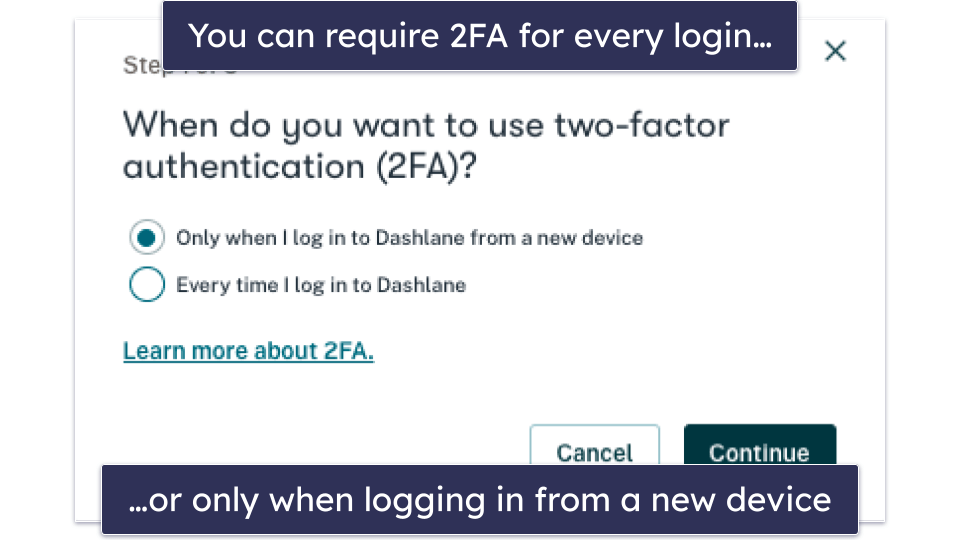
Dashlane offers two-factor authentication (2FA) for enhanced security, supporting TOTP-based authenticator apps (e.g., Google Authenticator, Duo Mobile, Authy) and biometrics. Once 2FA is enabled, you’ll need to use a second form of authentication when you log into your account — either for every login, or just when logging in from a new device.
Note that if you choose to use 2FA every time you log in, you won’t be able to access your vault when offline. However, Dashlane’s web-first version allows for offline access as long as you have previously logged in, registered your device to your account, and do not have 2FA enabled for each login. This ensures you can still access your data even without an internet connection.
For 2FA, Dashlane supports TOTP-based authenticator apps and biometric logins on Android, iOS (Touch ID/Face ID), Windows (Windows Hello), and Mac (Touch ID). Using biometric logins is a convenient and secure way to protect your Dashlane account. As soon as you set up 2FA, Dashlane provides recovery codes to access your vault if you lose your 2FA device.

Overall, Dashlane offers a good range of 2FA options, including TOTP compatibility and biometrics, with recovery codes for added security. Unfortunately, security keys, such as FIDO2, are not supported as a secondary 2FA method; however, they can be used for passwordless login to unlock your vault.
Emergency Access & Account Recovery — Decent Options to Recover Your Account
There are several ways to get into your account if you forget your master password. One option is to use a recovery key, but you need to enable this feature first. The process is straightforward, and I like how it’s similar regardless of whether you use the iPhone, Android, or Dashlane web app — you simply go into Dashlane’s settings and enable it.
Once you enable the recovery key option, Dashlane will give you a 28-character code, which you should write down. Dashlane doesn’t keep any record of recovery codes, so it’s important to store your code in a safe place.

You’ll then see a Forgot password? option on Dashlane’s login page. I tested this and was pretty impressed by it — it asked me to verify my account by entering a code sent to my email (you can also get a code sent by a different 2FA option). Once I’d confirmed the code, I could enter my recovery key and create a new master password. When I did, all my passwords were still in my vault, exactly where I’d left them.
Dashlane logged me out of all of my devices, but I was able to use my new master password to regain access — which is great. However, you can only use a recovery code once. After I reset my password, Dashlane prompted me to re-enable the feature and generate a new key.
You can also use biometrics to get your account back if you forget your master password. I recommend setting up biometrics as soon as you create your account. Dashlane will prompt you to do so if you’re using a device that supports it, which includes newer iPhones and Androids as well as some MacBooks. You’ll then get the option to do biometric recovery and create a new master password if you enter the wrong one. If you’re using an Apple product, you can choose either fingerprint or Face ID, but Android users can only use fingerprint verification.
Dashlane also provides emergency access in the form of DASH files. These are encrypted files that store your passwords offline. You can use them to recover your data or to allow a trusted contact to access your logins in an emergency. I must admit, I’m not a huge fan of exporting your data for emergency access to work. Competitors like NordPass handle emergency access within their apps, which is much better.
Dashlane will prompt you to create a password before downloading the DASH file. This should be distinct from your master password and is needed to access the data contained in the DASH file later.

The file only contains an archived version of your vault. If you add new passwords or credit cards to Dashlane after downloading it, you’ll need to export the data again for them to be included.
All in all, these are good features, but not the best on the market. Many competitors provide a built-in emergency access tool that doesn’t require you to export any files. That said, other competitors (like Avira Password Manager) don’t include any emergency access at all, so it’s good that Dashlane includes it in some form.
Password Generator — Simple & Effective Password Creation
Dashlane’s password generator is simple to use, works well, and allows you to create passwords that include or exclude numbers, letters, symbols, and similar characters (for example, Z and 2), or passphrases up to 8 words long. The password generator can be accessed via the browser extension and mobile apps, and it also automatically shows up when you’re creating a new account.
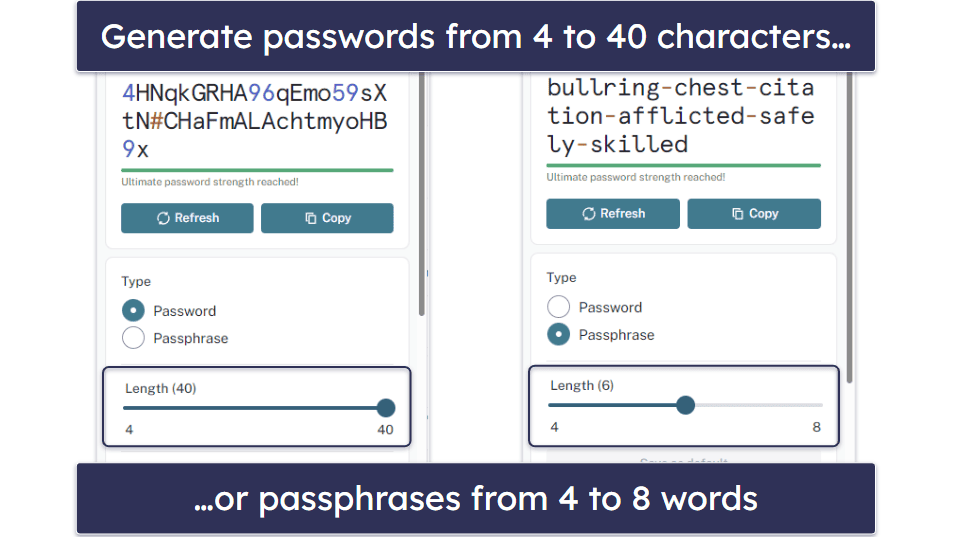
By default, Dashlane’s password generator creates 16-character passwords that include a mix of letters, numbers, and symbols. However, you can also easily change your preferred configuration. Dashlane’s default password length is similar to competing password managers. For example, Sticky Password automatically generates 20-character passwords. However, most competing brands can create passwords that are longer than Dashlane’s upper limit of 40 characters. Sticky Password has an upper limit of 99 characters, whereas RoboForm lets you create passwords up to 512 characters long.
One feature I particularly like is Dashlane’s Generator History. This is a great feature if you’ve used a generated password to create an account but have auto-save turned off by default (or forgot to save it for another reason). You can simply check your history and manually copy and save the generated password to your Dashlane vault. Password history isn’t something a lot of competitors offer, so it’s cool that Dashlane offers this feature.
On the other hand, I’d like to see Dashlane add a smart password generator, similar to 1Password’s, which can create passwords that meet a website’s specific requirements.
Overall, Dashlane’s password generator is pretty good, and it does the job well. It creates very secure passwords, and its generator history feature is a great addition.
Password Sharing — Share Logins + Notes Easily & Securely

Dashlane makes it very easy to share passwords and secure notes with others. You can also revoke the recipient’s access to any shared passwords at any time. To share passwords, all you have to do is choose the item(s) you want to share, enter the recipient’s email address, and choose whether to give them limited or full rights:
- Limited rights — the recipient can use the shared password, but they’ll see it as a series of dots.
- Full rights — the recipient has the same rights as you do, which means they can view, use, edit, share, and revoke access to the passwords. You can revoke the recipient’s access to any shared passwords at any time.
While I appreciate the features of Dashlane’s Friends & Family plan, I’m disappointed that it doesn’t allow for the creation of shared vaults. Unlike 1Password, which offers shared vaults even on personal plans, Dashlane restricts this capability to its business plan users, who can share collections with other members of their organization. But this really isn’t a big deal, as manually sharing multiple logins doesn’t take longer than a few seconds. I’d also like to see Dashlane add the option to share passwords with anyone, not just other Dashlane users. 1Password is one of the rare password managers that doesn’t force password recipients to create an account to view and use shared passwords.
Overall, Dashlane has good password sharing features. Sharing one or more passwords or secure notes with one or more recipients is super easy, and users can also choose whether the recipient can only use the items without viewing them or have full rights. I also like that users can change their minds at any time and revoke access to an item in just a couple of clicks.
Password Health — Very Useful Tool for Auditing Your Passwords
Password Health is a password auditing tool that continuously scans all your saved accounts for compromised, reused, and weak passwords, and assigns you an overall password health score.
Password Health isn’t a unique tool, but it works really well when compared to password security auditing tools offered by many competitors, including Password Boss. It even allows you to exclude some of your passwords from the overall password health score.
During my tests, Dashlane flagged all of my dummy accounts with repeated passwords, which also significantly impacted my password health score.

Dashlane then prompted me to change these passwords — and once I manually changed the passwords, my health score significantly improved.
Overall, Dashlane’s Password Health feature is a very useful tool that ensures all of your passwords are as secure as possible. Although it’s not unique, it works well, is intuitive, and allows you to identify any weak, duplicate, or compromised passwords quickly.
VPN — Fast & Secure Browsing With Unlimited Data
Dashlane is the only password manager on the market to provide a virtual private network (VPN). A VPN encrypts your internet traffic and changes your IP address, securing your online browsing, preventing anyone from tracking your internet activity, and allowing you to bypass internet restrictions and firewalls.

Dashlane’s VPN is powered by Hotspot Shield, one of the most popular VPN providers in the world. Like Dashlane’s password manager, the VPN uses unbreakable 256-bit AES encryption. Dashlane also has a strict no-logs policy, meaning it doesn’t track or store any user activity (like the sites you visit or the files you download).
Another great thing about Dashlane’s VPN is that you can use as much data as you want. This is a big deal. Most “bonus” VPNs included with other security products impose strict usage limits. For example, Bitdefender’s VPN restricts free users to 200 MB per day.
Dashlane’s VPN has servers in 80+ countries — while this isn’t as many as top standalone VPNs like ExpressVPN, it’s still pretty good. I tested most of Dashlane’s servers, and I was impressed with the speeds and quality of the connections. Here are my internet speeds without the VPN turned on and when connected to Dashlane’s fastest server:

My ping did slow down a bit, but my download and upload speeds were a bit faster with the VPN turned on — these are pretty impressive results, comparable to the biggest names in the VPN industry, like ExpressVPN and ProtonVPN.
I also tested my internet speed when connected to more distant Dashlane servers:

My ping again increased, but my download and upload speeds only suffered a slight decrease, and I could still browse the internet and watch videos just as quickly as I could without a VPN.
Thanks to its fast speeds, Dashlane’s VPN is a good choice for streaming, torrenting, and gaming — during my tests, I could watch videos, download files, and play games without interruption.
Dashlane’s VPN also comes with a kill switch and split tunneling. The kill switch, in particular, is one of the most important security features in a VPN, terminating your internet connection if your VPN connection is compromised. I’m glad to see that Dashlane’s VPN includes this feature for all major platforms.
Overall, Dashlane’s VPN is pretty good. It’s not quite up there with the best standalone VPNs, but it’s secure, fast, and easy to use.
Dark Web Monitoring — Constant Scanning for Data Leaks (With Instant Alerts)
Dark web monitoring scans the dark web for your email address and other personal information and notifies you if any of your data has been leaked in a data breach. Dashlane’s dark web monitoring includes the following:
- 24/7 surveillance.
- Monitoring up to 5 email addresses.
- Instant data breach alerts.
Most competitors that do provide dark web scanning, like 1Password and RoboForm, use Have I Been Pwned?’s free database.
Dashlane, on the other hand, uses its own data that is hosted on its own servers — it has over 12 billion records of data breaches, with almost a million new ones added each day. Plus, unlike competitors that only provide on-demand dark web scanning, Dashlane continuously monitors your email address and other associated data. And if Dashlane finds that your email has been involved in a data breach, it will send you an instant alert.
I tested Dashlane’s dark web monitoring by running a scan on one of my test emails.
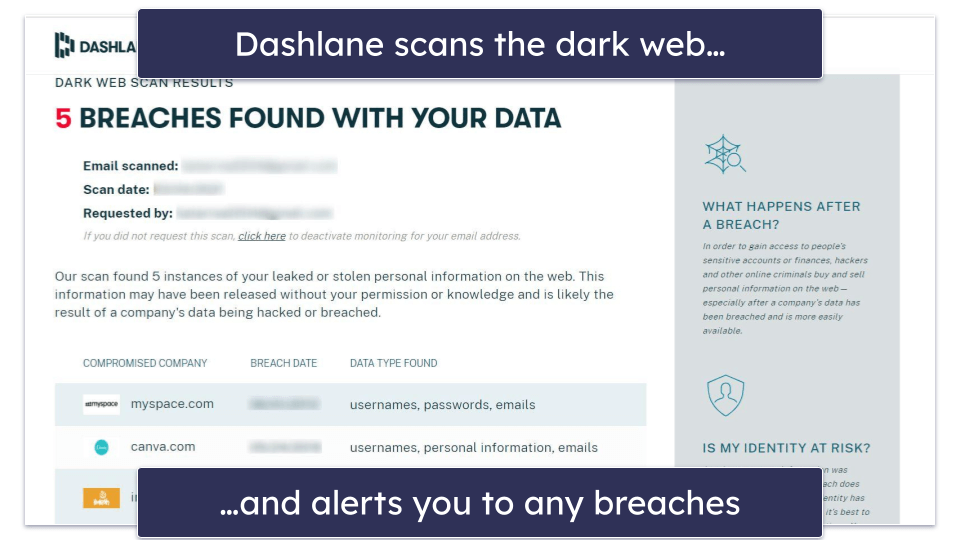
Dashlane found that my test email had been leaked 5 times. It showed me the websites associated with the data breach, the dates the breaches occurred, and the types of data that were revealed. Because Dashlane discovered that my information was leaked, it encouraged me to change all of the passwords for the compromised websites. And that was it — the breaches were marked as resolved as soon as I changed the passwords.
Dashlane’s dark web monitoring is the best I’ve seen from a password manager — unlike most competitors, Dashlane provides real-time dark web scanning, notifying users of a leaked email address the moment the breach happens. Plus, it’s easy to use, covers up to 5 email addresses, and it offers an easy way to fix any compromised accounts.
Phishing Alerts — Good Protection Against Shady Sites
Dashlane provides two types of phishing alerts. The first warns you about malicious websites posing as Dashlane, and the second stops you from manually entering a password on any other shady website posing as a legitimate one. To do this, Dashlane cross-checks the URL of the website you’re trying to log into with the URL of the account stored in your vault. If there isn’t a match, Dashlane will issue a warning.
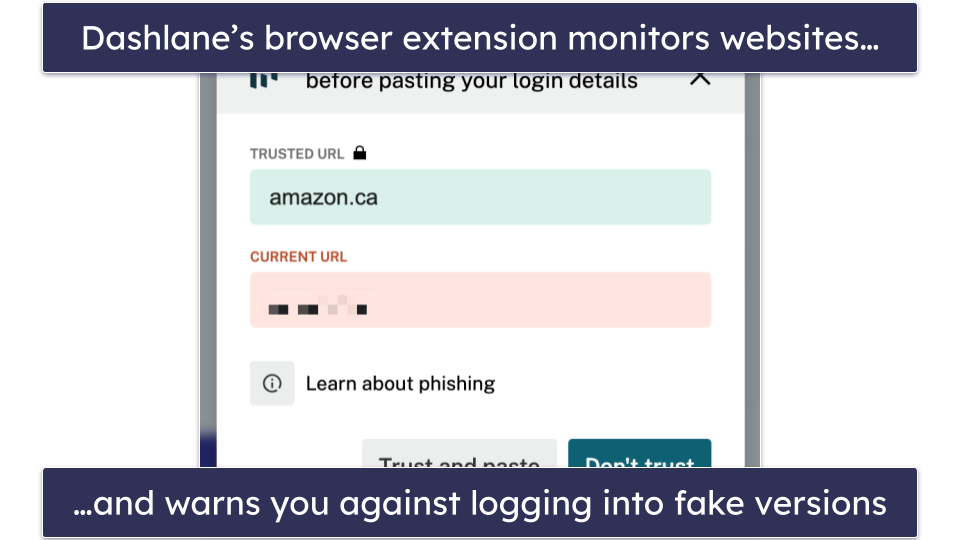
I tested this feature by entering my Facebook password into a sample phishing site, and Dashlane sent me an alert warning me that I was at risk of compromising my data. I tried this out using other sketchy sites, and I always received a pop-up warning. You even get an alert if you try to enter a stored password into the wrong website — regardless of whether it’s a phishing page or not.
Both anti-phishing features are built into Dashlane’s extension and don’t require any setup, but I’d like to see the feature expanded to block all phishing sites, even if you don’t have an account associated with them. As it is, it’s no substitute for an antivirus like Norton, which offers comprehensive web protection.
Dashlane Ease of Use & Setup — Very Simple & Intuitive
How to Install Dashlane (Just 3 Simple Steps):
- Register for Dashlane. Select the subscription option that best fits your needs and proceed to create your Dashlane account. During registration, you’ll be asked to create a master password that will act as your primary key to access all your stored data.
- Install the Dashlane browser extension. After creating your account, install the Dashlane browser extension by visiting your browser’s web store and searching for Dashlane. Click “Add to Browser” to install it. This extension enables you to manage your passwords directly within your browser and redirects you to the web app when necessary.
- Download the mobile app (optional). For managing your passwords on the go, download the Dashlane app from the App Store or Google Play. Log in with your master password to sync your data across devices and start adding or accessing your passwords anywhere.
Dashlane is easy to set up and use. With Dashlane being 100% web-based, you simply need to install the browser extension, and you’re ready to go. On Dashlane’s website, when you click Get Dashlane, you’re automatically taken to your internet browser’s web store, where you can install Dashlane’s browser extension. Once installed, a web page opens directing you to create an account (or log in if you already have one), and that’s it — you’re set up!

I appreciate that Dashlane provided me with different prompts to strengthen my account’s master password based on what I was typing. The suggestions changed even as my password got longer, but not necessarily better.
I really liked that I could download the mobile app directly via a QR code. Two minutes later, I was set up on mobile by following the easy instructions.
There was one thing that bugged me, though — I was automatically put on a 30-day free trial upon joining, but the VPN wasn’t available during the free trial, nor was customer support, so I didn’t actually get the full Premium experience.
After signing up, you can find everything in the web app’s simple dashboard.

Importing passwords into Dashlane is also pretty straightforward — you can do so via a .csv file downloaded from your browser or another password manager, like 1Password. Depending on the password manager you’re exporting your data from and your Dashlane plan, direct import may also be available.
Unfortunately, you can’t set up multiple vaults or folders for your passwords or customize the preset password categories, which is a real shame. 1Password offers these features, and it makes organizing your passwords much easier — especially once you start storing hundreds of passwords in your vault. However, you can name your Collections anything you want and also change them later if you want to.
Overall, Dashlane is very well-designed, and it’s one of the most intuitive password managers I’ve ever used. Importing passwords could be improved on, but it’s still a quick process that works well.
Dashlane Mobile App — Feature-Rich & Simple to Use

Dashlane’s mobile app is available for Android and iOS — and it’s excellent. It provides access to most of Dashlane’s features, it’s very easy to use, and it works exactly as promised. The first time you open the app and log in, Dashlane asks you to set up your biometric login and account recovery. This is great insurance in case you lose your master password.
After this, Dashlane provides a helpful tutorial on how to use the mobile app. Once you’re all set up, you can access your password vault and every other feature.
In Dashlane’s mobile app, you can:
- View all of the data saved in your password vault.
- Generate passwords.
- Save and auto-fill passwords.
- Share passwords and secure notes.
- Use the authenticator tool to create 2FA tokens for your online accounts.
- Check whether any of your passwords are weak, duplicate, or compromised.
- Get alerts if your email address is leaked on the dark web.
- Connect to the internet using a VPN.
- Store up to 1 GB of encrypted files.
- Manage passkeys (full passkey support on iOS 17 and Android 14).
- Import passwords (Android only).
- Change your master password.
In comparison to competitors like Sticky Password, this is a ton of features (but I really like how Sticky Password has a secure web browser).
Dashlane’s mobile app is very intuitive, too — it’s just as easy to use as the web app. During my tests on my Samsung Galaxy and iPhone 15, I found it very simple to find and use all of the features, and the auto-fill function worked perfectly every time. Honestly, I couldn’t find any flaw with Dashlane’s mobile app, other than not being able to import passwords on the iOS version (which wasn’t a big issue for me).
Dashlane provides one of the best mobile apps around. It syncs perfectly with the web app, it’s incredibly easy to use, and it works great.
Dashlane Customer Support — Impressive Service Across a Range of Channels
Dashlane provides the following types of customer support:
- Comprehensive knowledge base.
- Email support.
- Live chat support from Monday–Friday, 9am–6pm US (Eastern) (paid plans only).
- Twitter/X support (@DashlaneSupport).
- Official Reddit support.
- Phone support (for Dashlane Business users).
Overall, I was very impressed with Dashlane’s support team. Dashlane is one of just a few password managers that offers live chat support, along with Keeper and RoboForm. I received friendly and well-informed advice within less than a minute via the live chat option. The live chat support, email support, and knowledge base are all offered in English, French, and German, and the knowledge base is also available in Spanish. Twitter and Reddit support is only available in English.

I had a good experience with Dashlane’s email support, but it took a little longer to get a response than I would have liked. After sending my initial email, I received an auto-reply with links to relevant support articles on the site. However, this auto-reply also stated that I needed to respond to the email to keep my ticket active. Unfortunately, I didn’t see this message until several hours later, which meant that my query had not yet been sent. Ultimately, I received a thorough and informative response to my email over 24 hours later, which did address my issue. While the support was helpful, the slow response time was a bit frustrating.
Dashlane also has a fantastic resource library. There are step-by-step instructions for each topic so you can solve most issues on your own. I had trouble installing the Firefox extension, but I found a solution quickly in the resource library.

Dashlane only offers phone support on its business plans. However, this still makes it the only password manager with any phone support.
There’s no support forum, which is a shame. Quite a few password managers offer a support forum — including 1Password and Bitwarden — and I’ve found that they can be a pretty helpful resource when needed, so it’d be nice to see Dashlane implement this in the future.
Dashlane also operates a Reddit support page. This is an online community forum where developers actively participate in discussions and resolve user questions, making it an excellent space to obtain an official response from the Dashlane community.
Overall, Dashlane’s customer support is very good. There are tons of support channels available to paying customers, and even though you may have to wait a bit longer to get a reply using the email support feature, Dashlane also has an excellent live chat option, an in-depth knowledge base, and even an official Reddit page. All of this makes it a great choice if you’re not experienced using password managers.
What Dashlane Can Do Better — More Customization Options Would Be Good
Dashlane has a comprehensive set of features, but there are a few areas where I think it can do better. For example, how cool would it be if Dashlane added smart password options like 1Password? Smart passwords that tailor themselves to each site’s unique requirements are a huge time-saver. I’d also like to see Dashlane allow password sharing with non-Dashlane users and offer the option to set an expiry date on shared passwords. These tweaks would really up Dashlane’s game.
Additionally, Dashlane could improve by introducing custom fields for its password entries and the ability to organize your data more effectively. While the Collection feature is handy for organizing your passwords, it doesn’t allow you to organize any of the other entries, like IDs or credit cards, in your vault. 1Password allows custom entries and organization by allowing you to create multiple vaults.
Dashlane could also enhance its FIDO2 support by allowing security keys as a secondary 2FA method alongside passwords, in addition to their current use as a primary login method.
Overall, Dashlane is a secure and feature-rich password manager, but addressing these areas would further enhance its functionality.
Is Dashlane the Best Password Manager in 2026?
Dashlane is one of the best password managers in 2026. It’s very secure, it has more features than most competitors (it even provides a VPN), and it’s easy to use.
It also excels at standard password management features — its auto-save and auto-fill functions worked perfectly during my tests, its password security auditing tool helped me strengthen my weak and duplicate passwords, and its password sharing feature allowed me to easily and securely share passwords and secure notes.
Dashlane also has a couple of really useful extras that most competitors don’t offer — including a really good VPN with unlimited bandwidth and live dark web monitoring that provides instant alerts in case of a compromised email.
While I’d recommend Dashlane to just about anyone, I do have a couple of complaints. I’d like to see it improve a couple of its features, like allowing password sharing with non-Dashlane users. Some of Dashlane’s plans are also slightly more expensive than top competitors like 1Password and RoboForm, which offer a similar — if not better — value.
Dashlane’s 2FA options include TOTP apps and biometrics, but it does not support security keys as a secondary 2FA method, though FIDO2 keys can be used for passwordless login. Dashlane also discontinued its own authenticator app. That said, it supports third-party TOTP apps seamlessly.
However, overall, Dashlane is a great password manager — it works remarkably well, is packed with genuinely useful bonus features, its mobile apps are excellent, and it provides more value than most other password managers. Dashlane offers a free 30-day trial on its Premium plan, and its plans are all backed by a risk-free 30-day money-back guarantee.
Frequently Asked Questions
Can Dashlane automatically change my passwords?
No, Dashlane can’t automatically change your passwords, but if you manually change your password on a website, Dashlane will automatically offer to update the credentials for that website stored in your vault. It also has a handy password generator to help you easily replace any password you wish.
Is Dashlane secure?
Yes, Dashlane is one of the most secure password managers out there. It uses end-to-end 256-bit AES encryption, adheres to a zero-knowledge policy, offers two-factor authentication (2FA) with TOTP apps, biometrics, and FIDO2 security keys (as a primary login method). It provides additional security features, including password health auditing, live dark web monitoring, secure password sharing, and more.
Dashlane is also the only password manager to include a virtual private network (VPN), which encrypts your traffic and ensures your browsing activity is private. Dashlane’s VPN also uses 256-bit AES encryption, has a no-logs policy, and comes with a kill switch.
Is there a free version of Dashlane?
No, Dashlane no longer offers a free plan. To use Dashlane, you’ll need to subscribe to one of its paid plans, such as Premium or Friends & Family. Both options include the full set of features, like unlimited password storage, advanced security alerts, dark web monitoring, and access to the VPN. Each plan also comes with a risk-free 30-day money-back guarantee, so you can try Dashlane without risk.
Is Dashlane web-based?
Yes, Dashlane is a fully web-based password manager. It previously offered desktop apps, but these have since been discontinued. To use Dashlane, you simply need to install the browser extension and create an account. You will then have access to 100% of Dashlane’s features via the web app and browser extension.
Dashlane also offers an excellent mobile app that syncs seamlessly with the web app, providing access to all of Dashlane’s features.
Are my passwords stored on Dashlane’s servers?
Yes, but they are encrypted using 256-bit AES encryption before reaching Dashlane’s servers. All of the data in your vault is encrypted locally on your device before being sent to Dashlane’s servers, and the only way to decrypt that data is with your master password and private key, which are stored locally on your device. This means that if Dashlane were ever to be breached, your data would be completely safe.
Also, thanks to its zero-knowledge architecture, Dashlane’s employees cannot access any of your data, even in an emergency or if you forget your master password. But Dashlane offers two account recovery options: you can use your recovery key or your fingerprint if you’ve enabled biometric recovery.
Is Dashlane trustworthy?
Yes, Dashlane is incredibly trustworthy for a number of reasons. It’s one of the only password managers that has never experienced a data breach or hack. It uses a wide range of security tools to ensure it’s impenetrable to outside attack, including 256-bit AES encryption. This is the same encryption standard used by banks, governments, militaries, and intelligence agencies across the globe.
Even if Dashlane were successfully hacked, there would be very little risk to your data, as it uses a zero-knowledge policy that ensures no one has access to your password vault.
What is better than Dashlane?
The only password manager I consider better than Dashlane is 1Password, which ranks #1 across most of our tests. However, Dashlane is always a close second. Both password managers offer excellent value and security, but 1Password is slightly cheaper than Dashlane on most equivalent plans. And while Dashlane has more features in general, you might already be using them on another cybersecurity product. For example, Dashlane’s VPN is a great addition, but there are better options from standalone VPNs and full-suite antivirus packages.
Has Dashlane ever been hacked?
Dashlane has never been hacked. While hackers have successfully infiltrated other password managers in the past, including LastPass, there is no record of a successful attack against Dashlane.
Dashlane uses state-of-the-art security to guard against even the most sophisticated cybersecurity threats, including 256-bit AES encryption — the same standard used by governments, banks, and national security and intelligence agencies.
Even if Dashlane was successfully hacked, your data may not be in danger. Dashlane uses a zero-knowledge policy to ensure that even if it’s infiltrated, your passwords and personal data remain hidden. You’re the only person who can access your password vault at all times.
Is Dashlane suitable for business use?
Yes, Dashlane is highly suitable for business use, offering a range of features designed to meet the needs of corporate teams. Dashlane allows for secure sharing of passwords and sensitive information within teams, and the Admin Console provides IT administrators with comprehensive tools to manage user access, enforce security policies, and monitor activity across the organization.
Additionally, Dashlane supports Single Sign-On (SSO) integration, allowing employees to access their Dashlane vault using their existing corporate credentials, which simplifies the login process. Advanced security features, including dark web monitoring, two-factor authentication, and a VPN (available on the Business and Omnix plans), provide an extra layer of protection for business data, ensuring secure browsing.