

Norton Family Review: Quick Expert Summary
Norton Family provides many features that keep your kids safe online. It has user-friendly apps, which makes it easy to monitor, control, and limit your child’s online activity.
It comes with all the essential parental control features, such as web and app filtering, time limits, scheduling, location tracking, and activity reports. I’m also really happy that top VPNs can’t bypass Norton Family’s web filtering.
In addition, Norton Family also comes with:
- School Time — Allows you to restrict your child’s web usage during school hours.
- Favorite Locations — Lets you set up large geofenced zones.
- Search Supervision — Lets you track your kids’ searches on YouTube’s site and popular search engines.
- Video Supervision — Tracks which videos your kids watch on YouTube and Hulu’s sites.
- And more …
That said, Norton Family has a few issues that keep it from being the best parental app in 2026 — it’s easy for kids to bypass web filtering and video and search tracking on Windows, some tracking features only work on iOS if your child uses the Norton Family browser, and Norton Family can’t monitor macOS devices. What’s more, most of its support reps are not helpful.
Norton Family has a paid yearly plan and also comes bundled with Norton 360 Deluxe, Norton 360 Premium, Norton 360 Advanced, and Norton’s LifeLock plans. These plans provide access to an antivirus, virtual private network (VPN), password manager, and much more. Just note that only the Ultimate Plus + Lifelock plan offers monitoring of unlimited devices; the number of devices of the other plans ranges from 5 to 10 — Norton Family’s standalone plan covers 10. Norton backs each purchase with a 60-day money-back guarantee.
Try Norton Family (60 Days Risk-Free)
Norton Family Full Review — Excellent Parental Controls (With Super Accurate Location Tracking)
I can safely say Norton Family is one of the best parental control apps out there. I spent several weeks testing it and talking with its reps to see how it compares to other top parental apps.
I really like Norton Family’s location tracking — it’s very accurate, provides regular updates, and there’s even a geofencing feature that lets you set up huge geofenced zones up to 2 miles, or 3,200 meters, from a set location. In addition, Norton Family provides good web and app filtering and even video and search tracking.
However, I’d like to see Norton Family improve its customer support and make its web filtering harder to bypass on Windows.
All in all, Norton Family provides good value, especially bundled with Norton’s top internet security suites. Plus, it includes a generous 60-day money-back guarantee.

Norton Family Plans & Pricing — Great for Large Families (With a Generous Money-Back Guarantee)
Norton Family has a paid yearly plan and also comes bundled with some of Norton’s other plans. The standalone Norton Family plan allows 10 connections, so I think it’s a great choice for large families.
Norton Family accepts credit/debit cards, PayPal, Apple Pay, and Google Pay, and backs each purchase with a very generous 60-day money-back guarantee.
Below is an overview of Norton plans that include Norton Family, which is referred to as “Parental Control” in the bundled plans:
Norton Family Standalone Subscription — Basic Plan
Norton Family’s standalone subscription is priced at $49.99 / year, which I think is very affordable. But even though Norton Family is a really good service, I understand that not everyone likes the idea of committing to yearly plans — if that’s an issue, I’d recommend checking out Bark instead, as it has affordable monthly plans.
Norton Family Bundled Subscriptions — Value-Packed Plans With Extras
Norton Family is also bundled in other Norton subscriptions, including Norton 360 Deluxe ($49.99 / year*), Norton 360 Premium ($44.99 / year*), and Norton 360’s LifeLock plans. The Norton 360 Deluxe and 360 Premium subscriptions include access to:
- Norton 360, the best antivirus on the market — it comes with an advanced malware scanner with perfect malware detection rates, web protection that is excellent at blocking phishing sites, dark web monitoring that makes sure your personal data isn’t leaked on the dark web, and webcam protection to prevent hackers from remotely controlling your webcam.
- Norton Secure VPN, one of the best antivirus-bundled VPNs on the market — it comes with all essential VPN security features to protect your data and extra features like an ad blocker and a tool that alerts you if you’re about to connect to a dangerous Wi-Fi network.
- Norton Password Manager, the top antivirus-bundled password manager around — it allows you to store unlimited passwords, it’s great at generating, saving, and filling passwords and web forms, and it has a password auditing feature that flags weak, outdated, or duplicate passwords.
I think it’s worth getting the Norton 360 Premium and Norton 360 Deluxe subscriptions if you’re also interested in protecting your family’s devices from security threats — I’d personally go with Norton 360 Deluxe because it provides really great value, is affordable, and is available worldwide.
Norton Family Features — All the Essentials, Plus Some Cool Extras
Norton Family comes with the following industry-standard parental control features:
- Web and app filtering — Allows you to choose which sites and apps your kids can use.
- Time limits — Pick how much screen time your children are allowed.
- Location tracking — Lets you see where your kids are and where they’ve been.
- Scheduling — Select specific times of the day when your child is allowed or isn’t allowed to use their devices.
- Activity reports — Display information about your child’s device usage and online habits.
In addition, Norton Family comes with extra features, including Video Supervision, Search Supervision, School Time, and more.
Web Supervision — Flexible Content Filtering & Detailed Reports
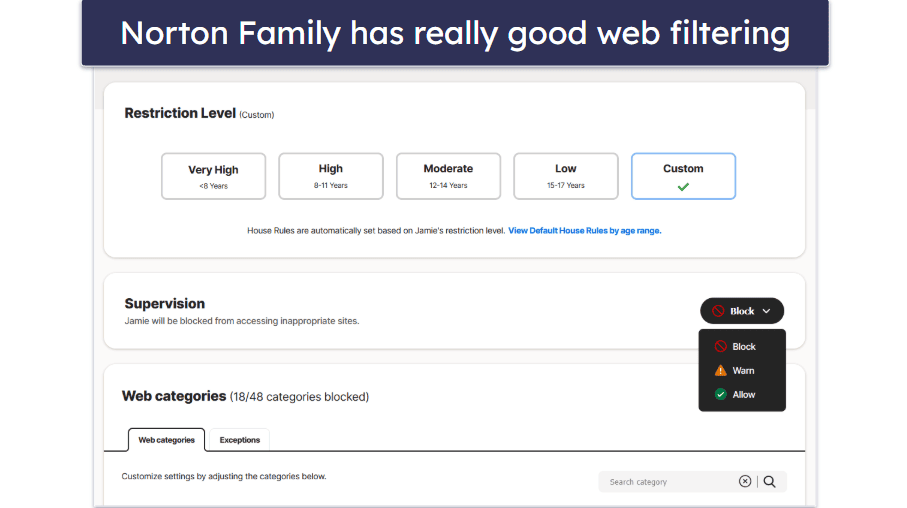
Norton Family’s Web Supervision feature allows you to monitor which sites your kids access and block them if necessary. You can restrict and allow access to specific sites, but Norton Family also has 45+ predefined website categories, including Crime, Alcohol, Mature Content, Suicide, Violence, and more. Plus, there’s an option to warn the child about a site and let them choose if they want to access it — this is helpful if you want to give your child more online freedom while helping them think more critically about the content they access.
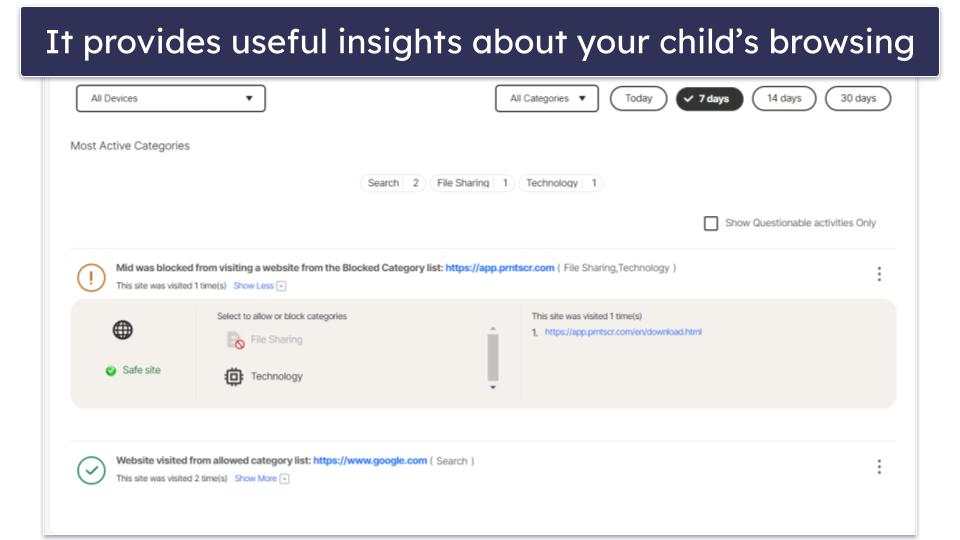
Norton Family also displays daily, weekly, bi-weekly, and monthly activity reports for your child’s web usage — the reports show which whitelisted sites and site categories your kids accessed, and which blacklisted sites and site categories they tried to access (and you’ll get an email alert within 15 minutes when your child tries to access a blocked site). You can also allow and block different sites and site categories. However, during my tests, it took about 10 minutes for a category block to start working, though specific URLs were blocked instantly, which is good.
Web Supervision is available for iOS, Android, and Windows devices. On iOS, its web filtering only works on the Norton Family browser, which your child can access through the kids app. On Android, it works on Google Chrome, the default Android browser, and the Norton Family browser. And on Windows devices, it applies to Chrome, Firefox, and Edge.
On mobile, the restrictions are enforced using VPN technology. On desktop, Norton Family enforces web restrictions by automatically installing the Norton Family browser extensions on supported browsers, though they still need to be manually activated to work.
I especially like that Norton Family provides access to predefined web filtering rules by age — so if you don’t want to spend time whitelisting or blacklisting site categories or specific sites, you can just pick a predefined web filtering ruleset:
Norton’s web filtering on Windows is resilient to tampering. It will still work even if your child disables the extension or uses an unsupported browser. The only difference is that it’ll show a browser-specific block page instead of the Norton Family block page. Plus, you’ll receive an alert if your child disables the extension.
On its mobile apps, though, you will need to manually block unsupported browsers using the App Supervision feature, which is a bit inconvenient. For comparison, Qustodio has an option to automatically block unsupported browsers.
Kids often use VPNs to get around web filtering, so I also tested Norton Family with top VPNs like ExpressVPN and Private Internet Access by accessing 10+ restricted sites — fortunately, Norton Family’s web filtering prevented me from connecting to them.
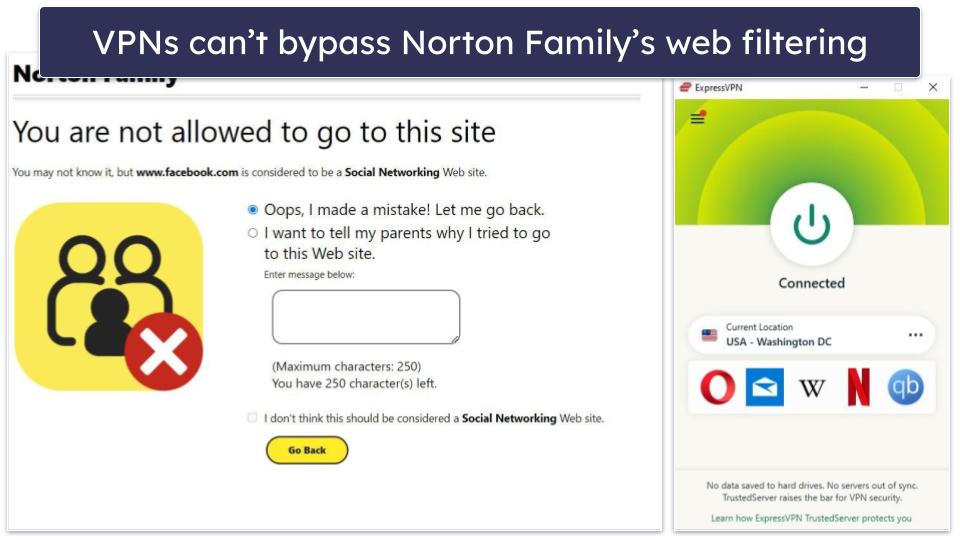
I really like how Norton Family’s web filtering allows kids to request access to a blocked site when they’re using the Norton Family kids app to surf the web — this is helpful if they need one-time access to the site for a specific reason or if Norton Family or you accidentally block a safe website, as your child doesn’t need to phone or message you to request access to it. On mobile, this is only possible via the in-app browser, but it’s still a pretty convenient tool, considering that some top competitors like Qustodio don’t provide access to such an option.
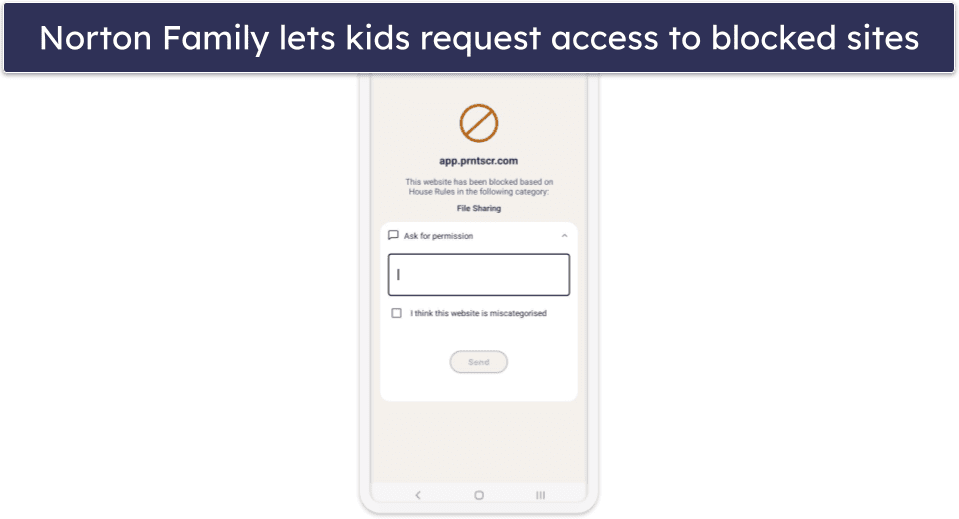
Overall, Norton Family’s Web Supervision feature works really well (even top VPNs can’t bypass it), is really easy to use, and even lets kids request access to potentially safe sites, which is convenient — I just wish it would also offer an option to more conveniently block unsupported browsers on mobile.
Time Supervision — Set Reasonable Screen Limits & Track Usage
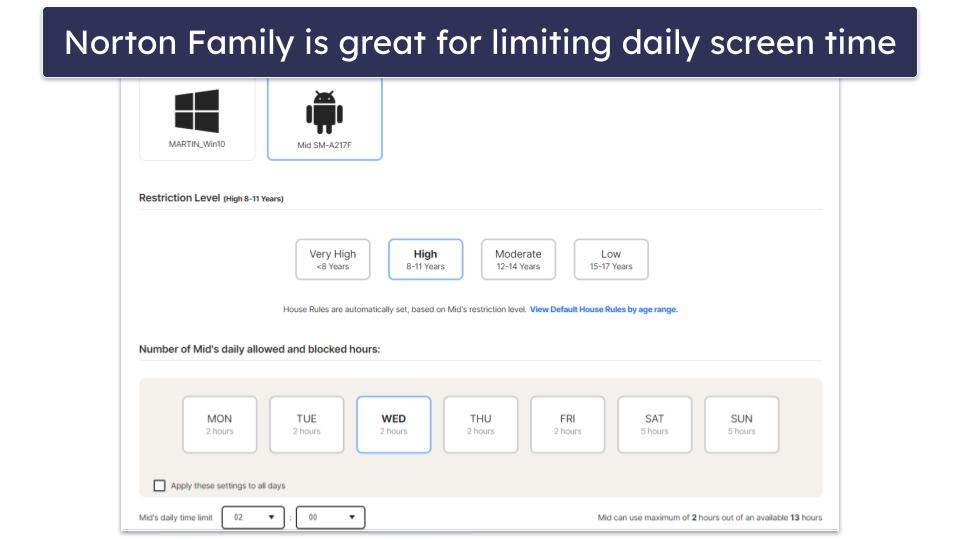
Norton Family’s Time Supervision feature lets you set a screen time allowance for each day in increments of 30 minutes. This feature is available on iOS, Android, and Windows and is really easy to use — you just have to pick the day and use dropdown menus to set how much total screen time you want your kid to have in a day. There’s also an option to apply this limit for every day of the week with 1 click.
In addition, the Time Supervision feature allows you to schedule screen time limits by day and night, and you only need to highlight the time range (either in 30-minute increments or hour-long chunks) you want to block or allow.

If you don’t want to bother with that, you can just use Norton Family’s predefined time limits:
When your child goes over their screen time limit, they’ll still be able to use their device, but they won’t be able to use any apps — however, they will be allowed to make emergency calls to whitelisted contacts, which is really good. I also like that kids can request more screen time if necessary (some top competitors, like Qustodio, don’t offer that), so they don’t need to make an emergency call just to let you know they need 30 more minutes of screen time to finish their homework.
Also, if it’s an emergency, kids can use a 4-digit PIN to unlock their device — the PIN is only visible in the parental app, so you’ll need to share it with them.
Norton Family’s time limits feature also displays reports that track your child’s screen time usage and display all the time extension requests they sent.
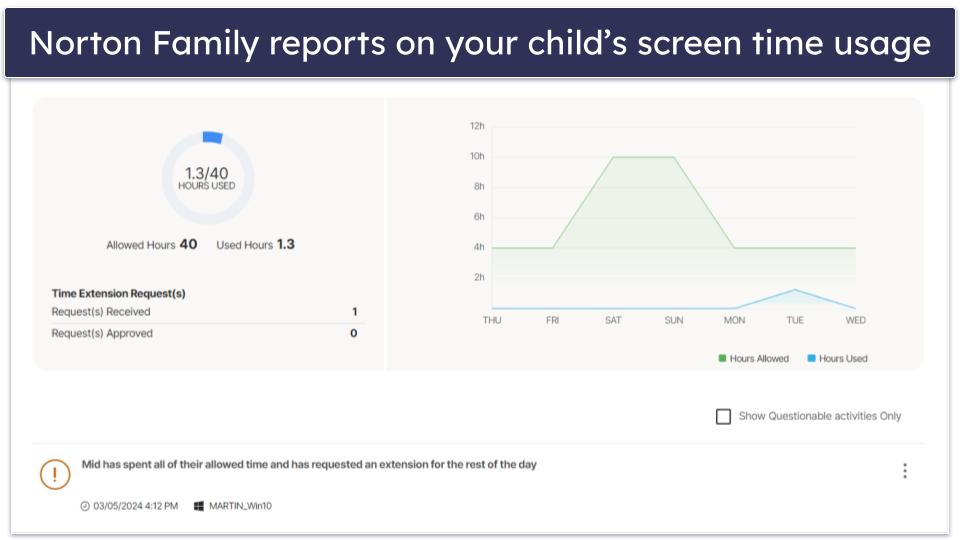
Overall, Norton Family’s time limits feature works really well, is pretty easy to use, and even provides kids with a way to request extra screen time.
School Time — Set Specific Restrictions During School Hours
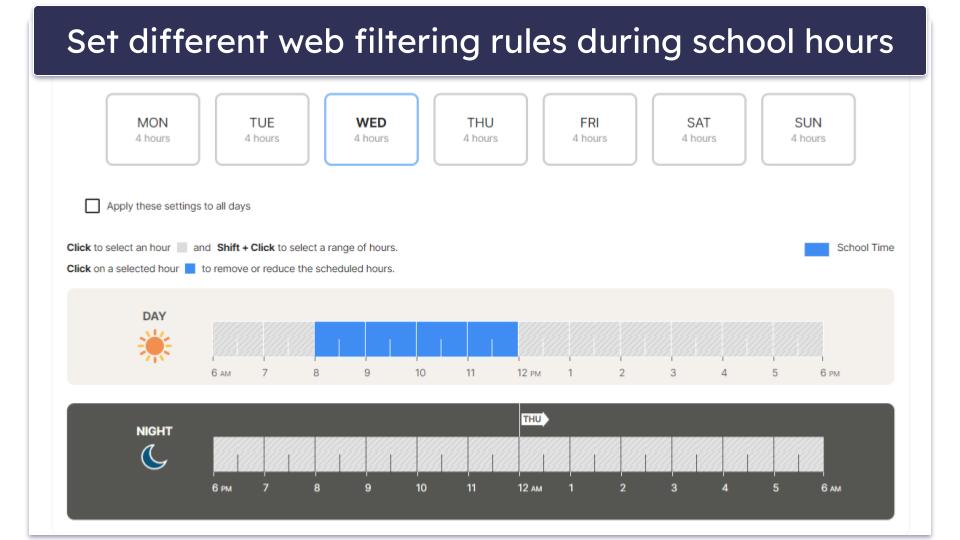
The School Time feature isn’t perfect. It shares all of the same problems as the Web Supervision feature — on mobile, it only works on specific browsers, and you’ll have to manually block unsupported browsers to prevent your kids from bypassing it.
Norton Family also has an Instant School Time option, which allows you to instantly enable School Time restrictions. You just need to specify the duration (up to 8 hours) using increments of 30 minutes.
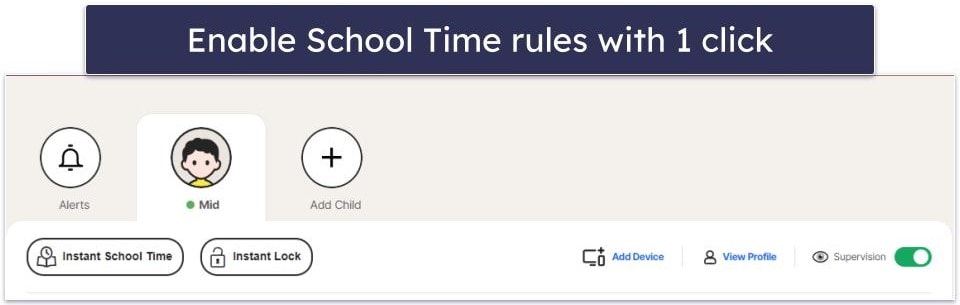
I tested the School Time feature, and it works pretty well. When I enabled it in the app, it automatically blocked most web categories, except for a few like Technology, Sport, Reference/Educational, and Web Mail, and whitelisted 30+ sites like docs.google.com, udemy.com, zoom.us, and others that your child might use within the scope of their school activities. On my test devices, I couldn’t visit any distracting sites like YouTube and Reddit or websites that might contain adult content, like 4chan.
You can further edit your kid’s school hours (they’re set from 8am to 12pm by default), whitelist sites, add sites to the restricted list, or edit the website category list.

But the School Time feature isn’t perfect. On mobile, it only works on the Norton Family browser, so you need to block access to third-party browsers like Chrome and Firefox — which is especially disappointing when you consider Qustodio monitors both Chrome and Firefox on Android. On Windows, it works on Chrome, Firefox, and Edge via the Norton Family browser extensions, but your child can disable them.
Also, I don’t like how this feature doesn’t detect and block apps, as kids can use them to circumvent School Time — at the very least, the School Time feature should provide a short list of popular apps like YouTube, Reddit, and Twitter that you can block, so you don’t need to do it separately with the App Supervision feature.
Overall, Norton Family’s School Time feature is useful for keeping kids focused at school or during online classes, but there are a few issues (like not being able to block apps), which I’d like to see Norton Family fix.
App Supervision — Good for Blocking Certain Apps (But You Can’t Set App Time Limits)
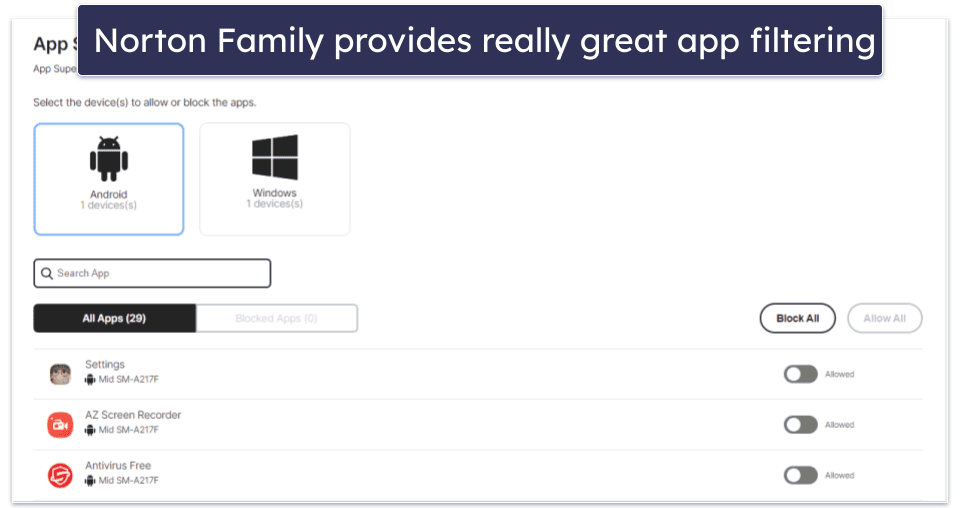
Norton Family’s App Supervision feature can monitor and block apps on Android and Windows, but not on iOS.
Norton Family’s app filtering is very easy to use — it displays a list of all the apps installed on your kids’ devices and lets you choose whether to block or allow them. In addition, it provides activity reports that show which apps your child installed or uninstalled, and which apps they use the most. This is very helpful, as it lets you quickly identify which apps are too distracting, so that you can restrict them.
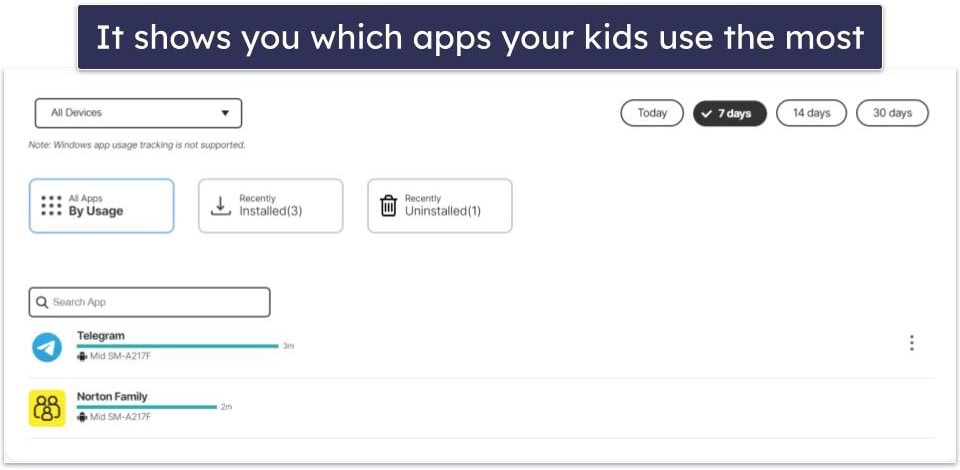
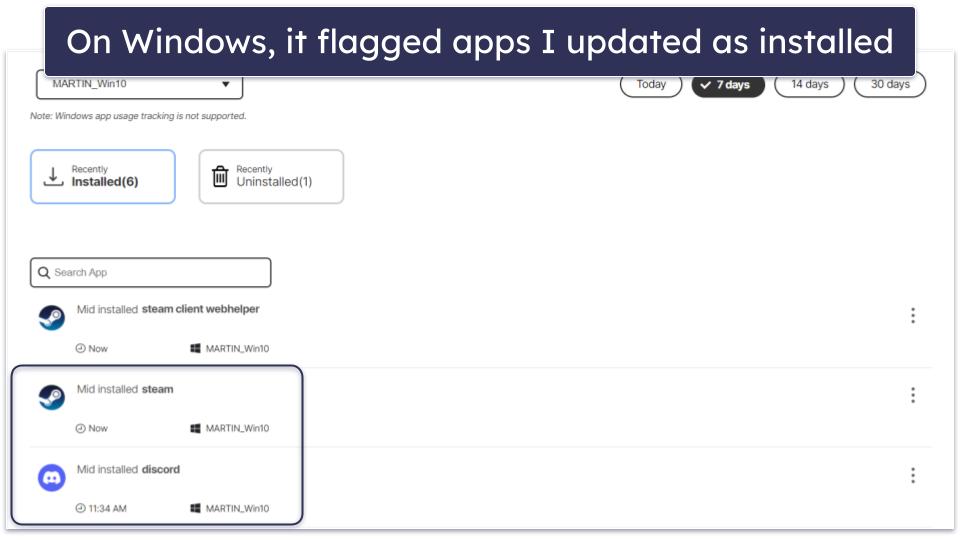
However, I don’t like how on Windows it flags apps that you’ve updated as newly installed apps. I found this a bit misleading and unnecessary. Plus, you can’t see what apps your kid’s used the most on their Windows PC — this feature is only available on Android.
I tested Norton Family’s app filtering capabilities on my Android and Windows PC devices, and I was able to block apps that are popular with kids and teens, such as Discord, YouTube, Twitter, Netflix, and WhatsApp. However, I didn’t like how it took a couple of minutes for changes to take place once I blocked the apps in the parental app — I also tested Qustodio’s app filtering, and the changes took place almost instantly. Plus, it isn’t foolproof. For example, it doesn’t detect Android’s Gaming Hub as an app, which means it can’t be blocked and your child could play tons of games without you knowing.
I wish Norton Family let you set time limits for apps in addition to blocking them (like Qustodio does), as that would provide better flexibility — for example, if your child does some chores, you could reward them with 2 hours of Netflix or YouTube instead of whitelisting the apps and potentially forgetting to blacklist them after the 2 hours pass. Also, Norton Family doesn’t monitor your child’s text messages and posts on social media apps like Instagram and TikTok (but Bark can).
Overall, Norton Family’s app filtering feature is really good at blocking apps that are popular with kids and teens and is also easy to use — but app tracking for Windows can be a little misleading, you can’t set time limits for apps (only block them), and you can’t monitor your kids’ messages on social media apps.
Location Supervision — Great Geofencing & Accurate Tracking
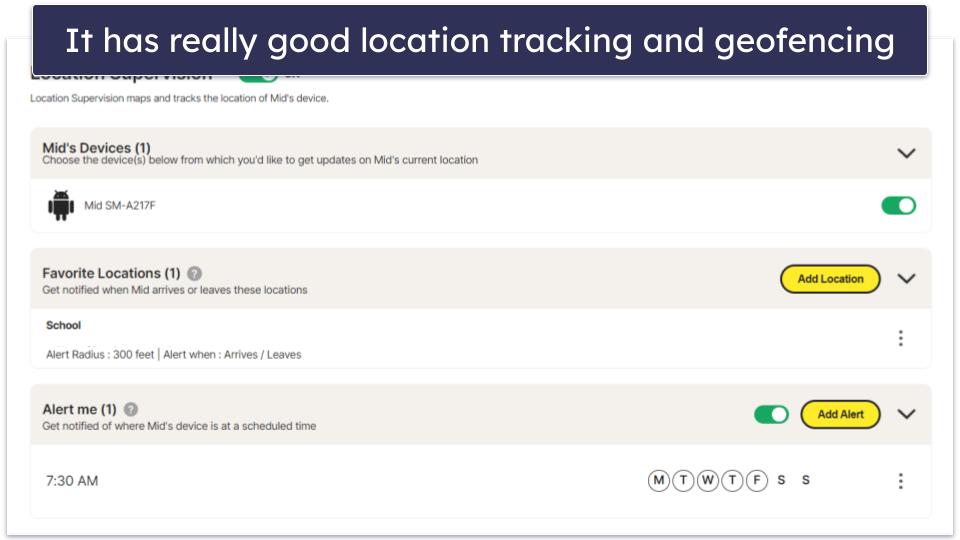
The Location Supervision feature tracks your child’s location and where they’ve been. Although it does feel a bit invasive, it can be helpful if your child gets lost or loses their device. It works on both iOS and Android devices.
Norton Family also lets you set up geofenced zones via the Favorite Locations option — basically, you set predefined zones and Norton Family alerts you when your child enters or leaves them. You can set up geofences that cover up to 2 miles, or 3,200 meters, from a set location, which is significantly more than other top competitors (Qustodio only allows geofences that extend up to 0.12 miles or 200 meters).
Also, there’s an Alert Me setting, which notifies you where your kids are located at scheduled times — you can set the day, time of the day (am or pm), the hour, and the minutes (using 5-minute increments). You could use this feature to keep tabs on your child’s location after they leave school to make sure they’re actually heading home.
I tested Norton Family’s location tracking using my Android device, and it’s really accurate — it sends you pretty regular updates about your child’s location (every 20–30 minutes) and it sends near-instant notifications when kids enter or leave a geofenced area. You can also filter your kids’ location by date and time intervals, and you can use the Locate Now option to instantly see their current location.

Plus, I really like that Norton Family provides you with an alternative to this type of location tracking, in case you find it too invasive — instead of you tracking your child’s location, you can ask them to use the kids app to perform a check-in, which will share their location with you. Although I like that Norton Family offers this feature, I prefer Bark‘s check-in tool because it lets you ask your child to share their location with you via the parent app. With Norton Family, you’ll have to call or text your kid to ask the same.
The feature, however, works very well. When I checked in from my Android test device, I immediately got a notification over email and in the parental control app on mobile. Norton also instantly updated my test device’s location in the web app.

I was a bit disappointed that Location Supervision isn’t available in many European countries. For example, you can’t use this feature if you’re located in 25+ countries, including the Netherlands, Germany, France, Russia, Israel, and Italy.
But overall, Norton Family provides a really accurate location tracking feature, includes access to geofencing technology, and even provides a check-in option for kids.
Search Supervision — See What Your Child Is Searching (But It’s Limited on Mobile)
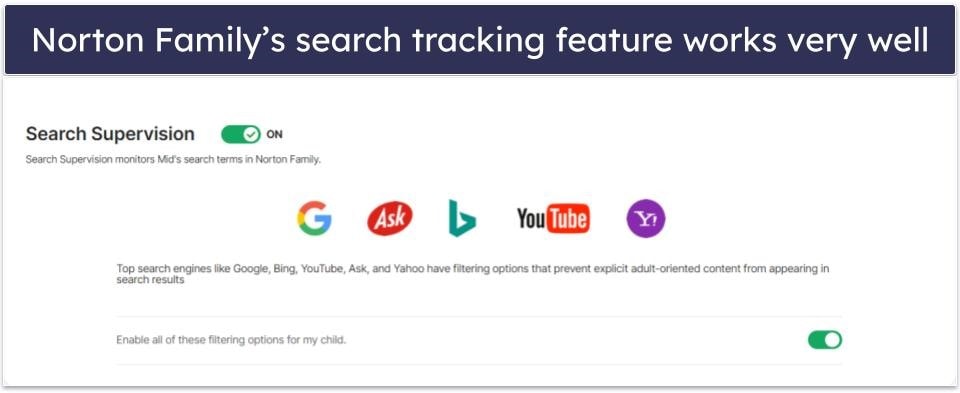
Norton Family’s Search Supervision feature tracks your child’s searches on YouTube’s site (but not the YouTube app) and popular search engines like Google, Bing, and Yahoo!. It also lets you forcefully enable safe search on those search engines, so that your kids won’t be accidentally exposed to adult content.
I tested this feature on my Android and Windows 11 devices, and it worked really well — it accurately displayed all of my searches on different search engines and YouTube. And it always prevented me from looking up adult content on Google and Bing.
On Windows, Search Supervision works on supported browsers (Chrome, Firefox, and Edge) via the Norton Family browser extensions. I like that Norton sends you a notification if your child disables or uninstalls the extension.
On Android, it only works on Google Chrome, the default Android browser, and the Norton Family in-app browser. On iOS, it only works on the Norton Family browser.
I honestly think Qustodio’s search tracking feature is much better — it tracks searches on the YouTube app. What’s more, kids can’t disable Qustodio’s search tracking, as it’s built into the kids app (which they can’t access without the parental app login credentials).
Overall, Norton Family’s search tracking feature works well, but it’s pretty limited on mobile (and especially on iOS devices), and it’s also easy to disable it on Windows.
Video Supervision — Helps You Monitor YouTube & Hulu (But It’s Too Easy to Bypass)
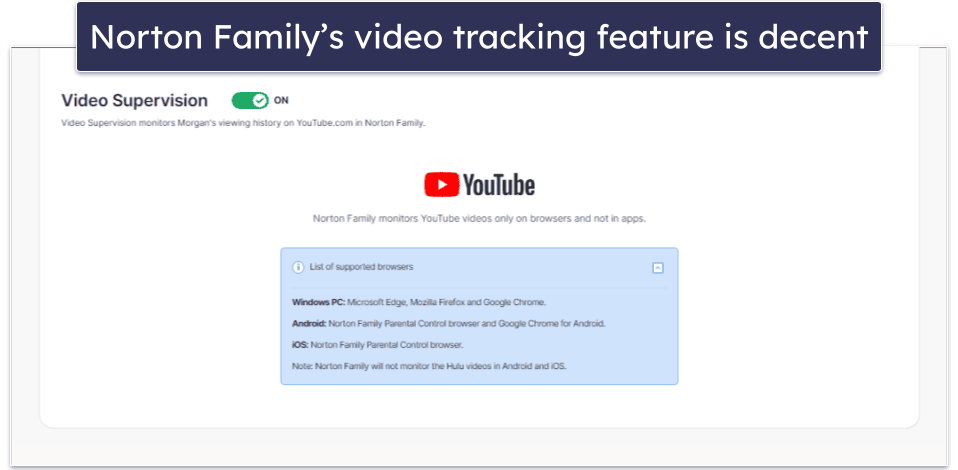
The Video Supervision feature shows you which YouTube and Hulu videos your kids watched. It can track YouTube videos on the YouTube site on iOS, Android, and Windows, and Hulu videos on the Hulu site on Windows.
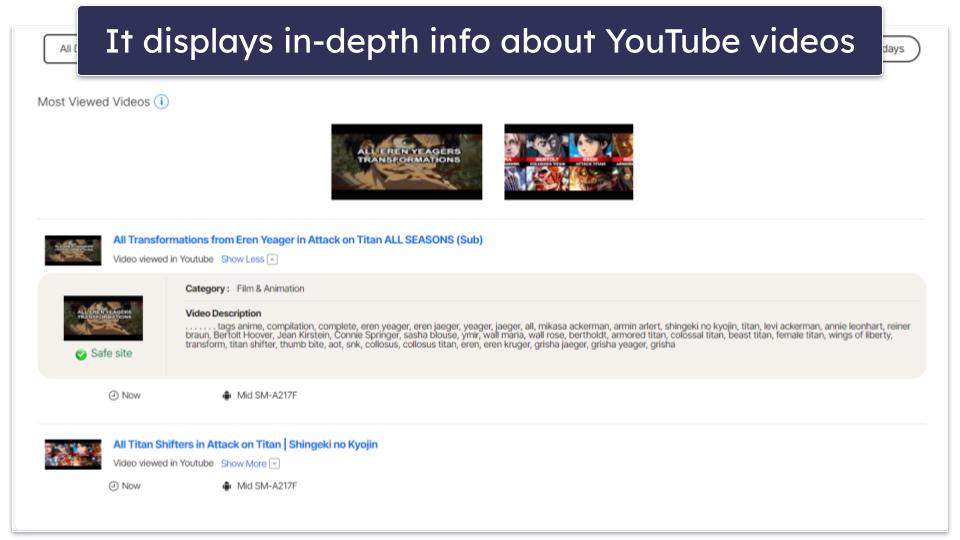
Norton Family’s video tracking feature works pretty well, though it sometimes takes too long (20–30 minutes) for tracked videos to show up in the parental app. On the plus side, Norton Family displays plenty of information about the videos — for example, for YouTube videos, it shows the name of the video, its description, and its thumbnail, and there’s even a link so that you can watch the video yourself.
However, the Video Supervision feature suffers from the same issues as the Search Supervision feature — it only tracks videos on the Norton Family browser on iOS and the in-app and Google Chrome browser on Android. Plus, it’s easy to circumvent the feature on Windows because kids can simply disable and remove the Norton Family browser extensions (though you’ll be notified if they do). It also can’t monitor YouTube videos embedded into other websites, so tech-savvy kids can just access restricted videos from another website.
I prefer Qustodio for monitoring YouTube, as it can monitor both the YouTube app and site. It can also set a time limit on YouTube app usage.
Overall, Norton Family’s Video Supervision feature helps you monitor YouTube and Hulu, but it doesn’t cover most browsers on mobile, and it’s easy to bypass on Windows.
Additional Features — A Few Handy Extras, Including Auto Logout
Norton Family comes with the following additional features:
- Uninstall protection — Norton Family requires you to type in your parental account login credentials to uninstall its kids apps, so that your child can’t secretly uninstall them. This feature is available on all devices.
- Instant Lock — Disables access to your kids’ devices, only allowing them to make emergency calls to trusted contacts. A child’s device can be unlocked from inside the parental app or by using a 4-digit PIN, which is generated by Norton Family inside the Instant Lock feature. I tested this feature on my Android phone, and it always worked really well, as it prevented me from using any apps. And on Windows, the device couldn’t be used at all.
- Two-factor authentication — Asks you to verify your identity in two steps each time you sign in. This extra layer of security helps you protect your account if your password is stolen.
- Auto logout — Norton Family includes an auto-logout feature that automatically signs you out after a long period of inactivity. This ensures your children can’t alter settings if you accidentally left your account logged in.
Norton Family Installation & Setup — Very Easy (Just Takes a Few Minutes)
Norton Family has apps for parents on iOS, Android, and web browsers (Edge, Firefox, Chrome), and it has apps for kids on iOS, Android, and Windows. If you’re interested in a parental app that also has kids apps for macOS, Kindle, and Chromebook, I recommend checking out Qustodio.
It’s really easy to install both the kids and parental apps, although keep in mind that setting up the kids apps will take longer because you need to give them different permissions. Overall, it only took me around 2 minutes to get started with the parental apps on my browser and Android device, and about 4–5 minutes to install the kids apps on my Android and Windows 10 devices.
Norton Family Parental Apps (Installation & Setup)
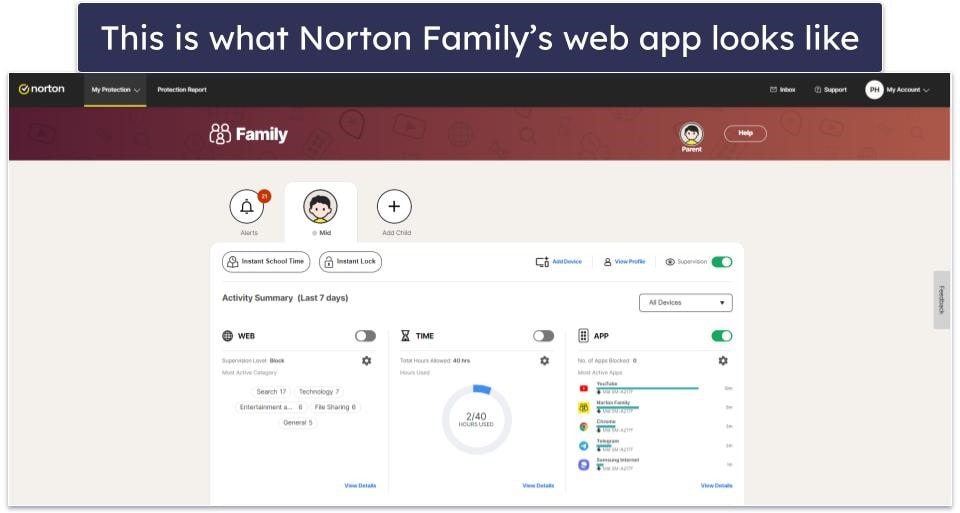
If you plan to use the parental app for browsers, there’s not much you need to do in terms of setup — once you create your account, just log into your Norton account dashboard, click on the My Protection drop-down menu in the navigation bar, then select Parental Controls to access the web browser parental app.
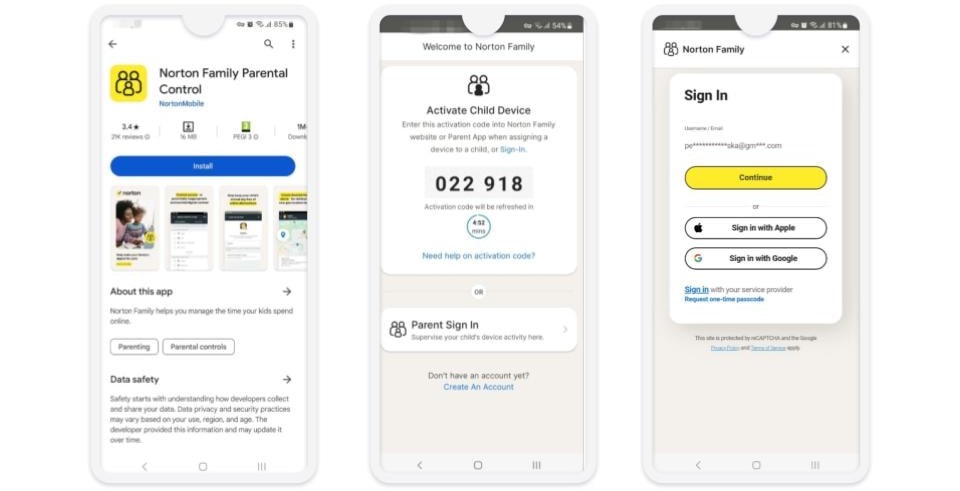
If you want to use the mobile parental apps, install the Norton Family parental control app from your device’s app store. Then, open the app, agree with Norton’s privacy and data policies, choose Parent Sign In on the next screen, and type in your parental account login credentials to sign in and start using the app.
Norton Family Kids Apps (Installation & Setup)
Start by logging into the Norton Family parental app and creating a profile for your child — add your child’s name, pick an avatar for them or upload a photo, and choose a restriction level (you can change it later).

Next, Norton Family will ask you if this is your child’s device. If it is, you’ll be provided with a link to download the kids app for it. If it isn’t, Norton will provide you with different download methods for its kids apps. For example, you can also email a download link to your child’s device — this is the option I picked, as I configured the kids app on my Android phone for this tutorial.
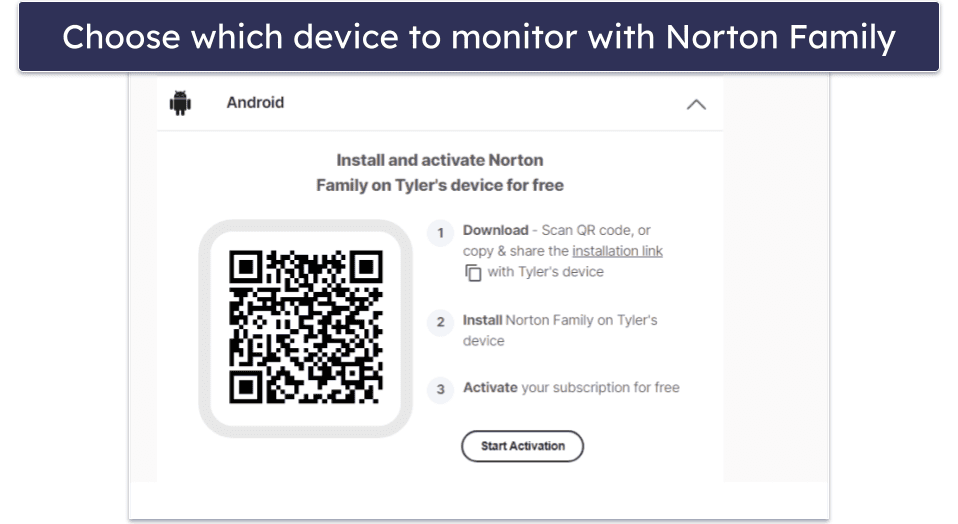
Once I picked the option, Norton then provided me with a QR code and a Google Play download link, so that I could download and install its Android kids app. On the right, there’s an empty field, where you need to type the activation code provided to you by the kids app.

Download and install the app, open it and agree to Norton’s data and privacy statements, and then use the code generated by the app to activate your child’s device.
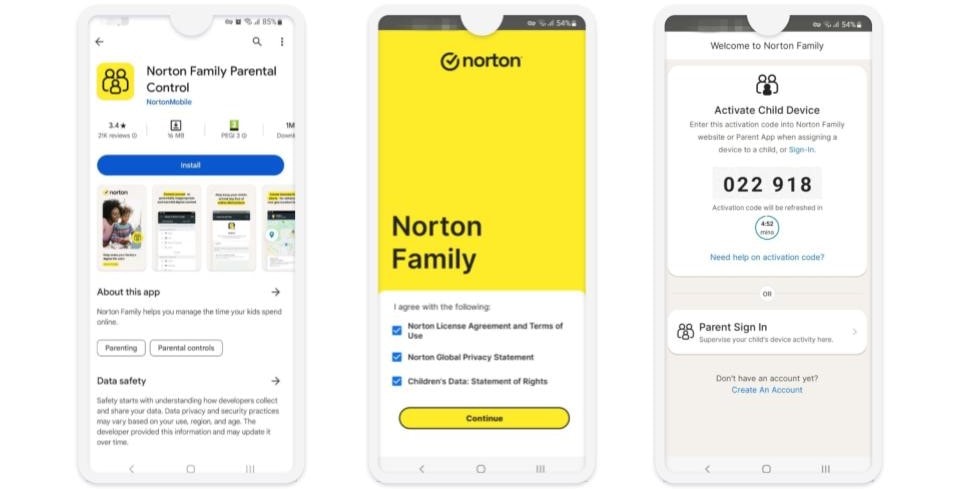
Now, confirm your account and Norton Family will assign the device to your child’s profile. Next, you’ll need to provide Norton Family’s kids app with different permissions — just follow the instructions for each type of permission, and hit Continue when you’re done.
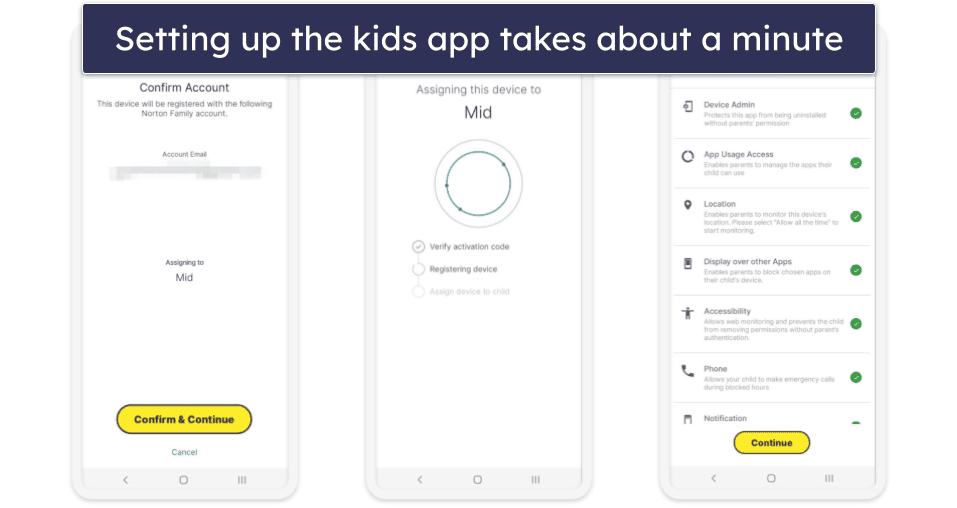
And that’s it — all that’s left is to sign into the parental app to start monitoring your child’s device and web usage.
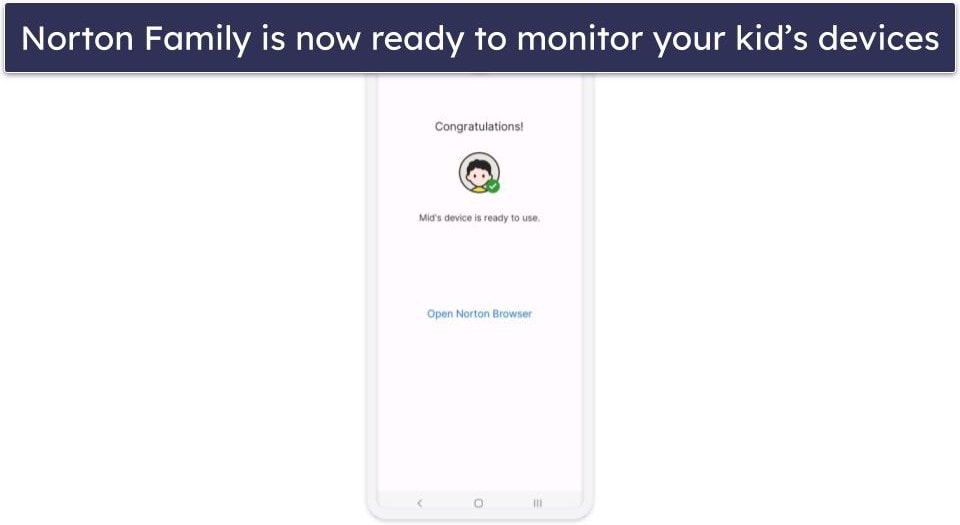
Norton Family Ease of Use — Very Intuitive With Helpful Explanations
Norton Family’s mobile and web parental apps are really user-friendly — the interface is intuitive and simple to navigate, and there are helpful explanations for most features and settings.
Norton Family has minimalistic kids’ apps for iOS and Android that are easy to use for kids — they let your child quickly check in when you request their location and view which restrictions are applied to their device. The mobile apps also allow kids to surf the web with the Norton Family browser, which is really intuitive. In addition, Norton Family has a Windows app, but it’s hidden in the background when it’s running, so it won’t bother your child.
Mobile & Tablets — Simple & Feature-Rich Apps
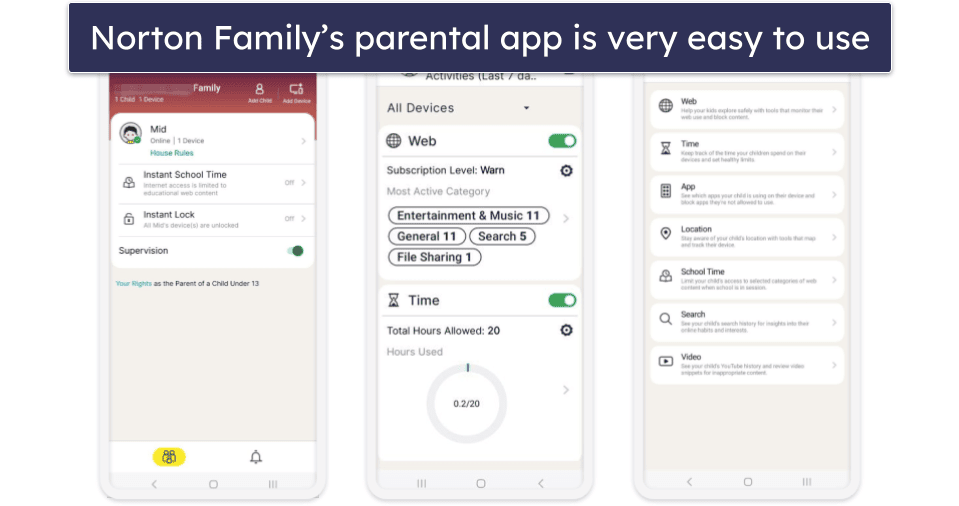
Both the iOS and Android apps have a very intuitive design, so even parents who have never used a parental app before will have no trouble getting used to the layout. Norton Family’s mobile apps make it very simple to add and change restrictions, and I really like that both the iOS and Android apps have a similar design, so it’s easy to switch between them. In addition, both mobile apps are feature-rich, and I also like that both apps provide access to the same features.
Overall, Norton Family’s mobile apps have a very user-friendly design that is easy for kids and parents to navigate, and they both come with many useful features.
Web App — Good User-Friendly Dashboard
I like Norton Family’s web app — its interface is very intuitive, so it’s really simple to navigate (you don’t even need a tutorial for how to use it, honestly). From the main dashboard, you can easily view all alerts associated with your child’s profile, access your kid’s profile, or add a new profile for your child.
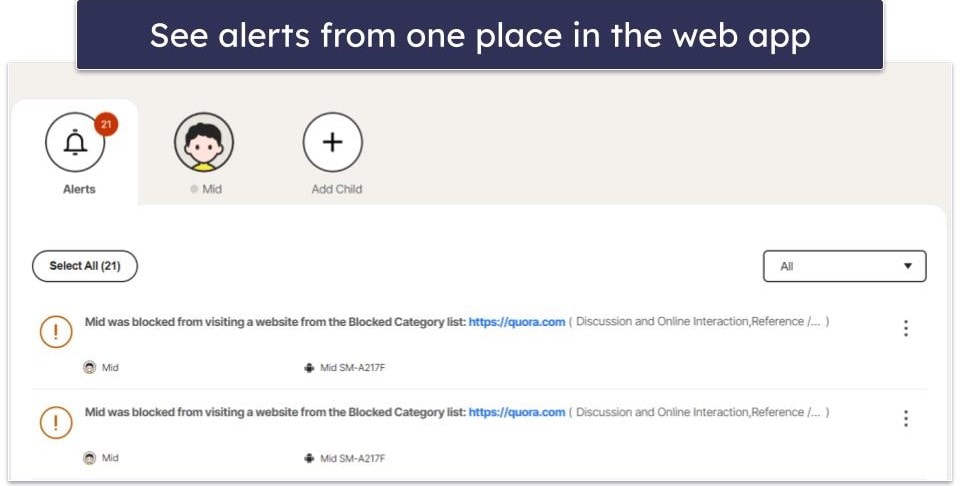
All features are clearly visible on the main dashboard, so it’s extremely easy to add new restrictions or edit existing ones — for example, it didn’t take me more than 10–15 seconds to block a website or restrict access to a specific app. However, I was a bit disappointed that it took up to 10 minutes for a block to start working. I did like how each feature and setting comes with helpful explanations, so you always know what everything does.
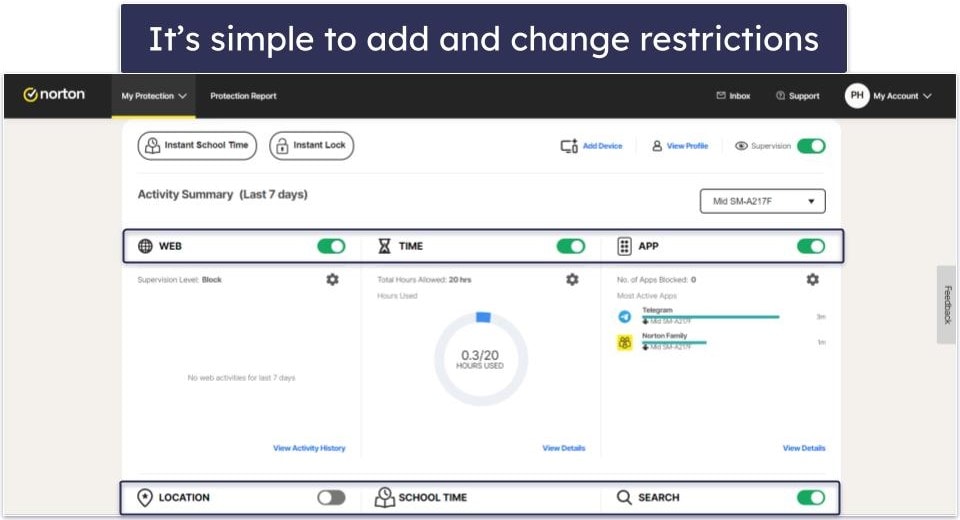
The web app also logs you out after several minutes of inactivity, so your kids can’t lift restrictions on their devices when you leave your device unattended.
Accessing your child’s profile is also really easy, and you can quickly change notification settings, add or delete devices, manage emergency contacts, choose your activity report frequency, change your PIN, and more.
Overall, I think Norton Family has a really user-friendly web app that comes packed with tons of useful features.
Norton Family Customer Support — Reps Lack Some Knowledge
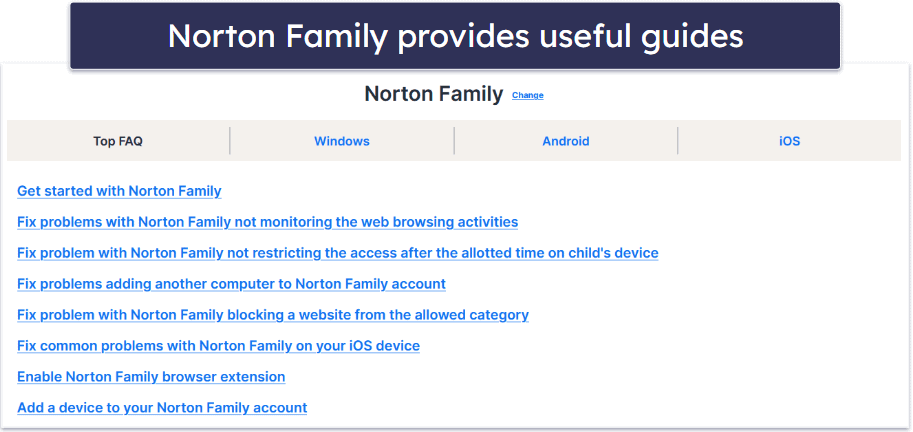
Norton Family provides good customer support, but there’s room for improvement — it has a support library that includes helpful setup tutorials, troubleshooting guides, and informative articles about Norton Family’s features, and there’s also 24/7 live chat, support on social platforms (Facebook and Twitter), an active forum, and 24/7 phone support in 50+ countries. Unfortunately, many of Norton Family’s support reps are not very knowledgeable.
Norton Family’s support section is pretty impressive. The tutorials are straightforward, and they’re accompanied by video setup guides. That said, although most of the content is really good, I did find a misleading article stating that Location Supervision isn’t accessible in Romania. This is false, as I live in Romania and was able to use the feature.
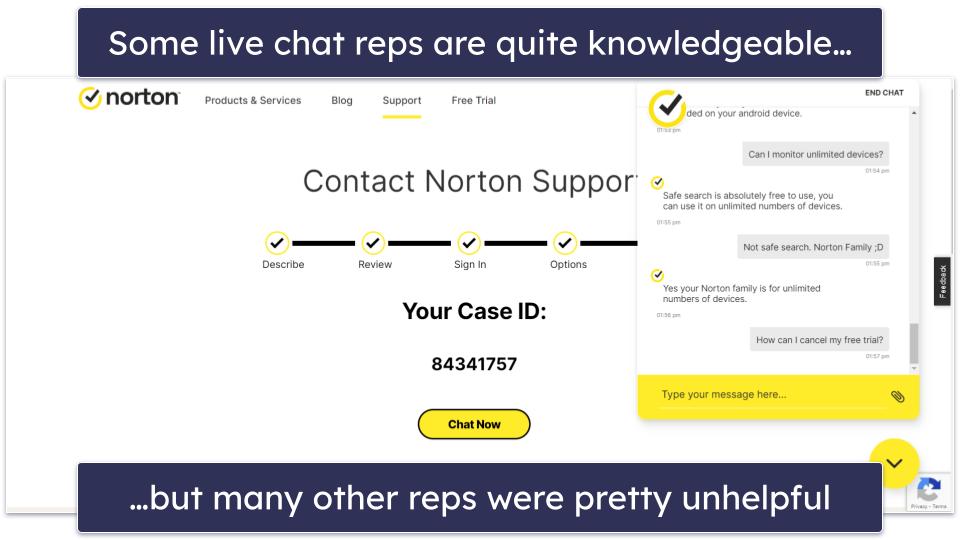
Norton Family is one of the few parental apps that provides 24/7 live chat (top competitors like Qustodio don’t have live chat, for example). Although I’m happy to see this, I’d really like to see Norton Family improve its live chat support. First of all, it’s a bit inconvenient to use — instead of just clicking a live chat button on Norton Family’s site, you have to complete a form, and then also deal with an unhelpful chatbot.
Accessing a live chat representative usually took a couple of minutes, and only a few agents offered meaningful answers; the majority relied on generic, copy-pasted replies that didn’t address my specific questions.
I also evaluated the social media support Norton Family offers by reaching out via Facebook. The majority of the representatives were able to respond to basic inquiries about the Norton Family product, but they provided less useful responses when I posed more complex questions about things like the functionality of certain features on various devices.
I also tried out Norton Family’s phone support, and it wasn’t that good. On my first call, the rep couldn’t answer my questions and they told me to call back in 2 hours because they were experiencing technical issues. On my second call, I spoke to a different rep, who wasn’t able to answer my questions about the App Supervision feature.
What’s more, I posted a few questions on Norton Family’s forum, and I’m happy to say that this channel is very active and provides good support — for example, I posted that I was having an issue getting the Instant Lock feature to work, and a rep posted a reply with a helpful solution in just a few hours.

Overall, Norton Family provides good support via its support library and forum, but although it has 24/7 live chat and phone support, most reps aren’t knowledgeable or helpful.
What Norton Family Can Do Better — Improve Social Media Monitoring
Norton Family is an excellent parental control app, but there are a few areas where it can improve, such as:
- Limited social media monitoring: Norton Family can block many social media apps popular with kids, such as Instagram, Snapchat, TikTok, and YouTube. However, it won’t let you set time limits on specific social media apps, and you can’t monitor your kids’ posts or text messages. This could become a problem if you suspect your child is being bullied or having another negative experience on these apps. Bark, on the other hand, excels at monitoring social media apps, and will send you snippets of concerning posts or messages.
- Compatibility issues: Norton Family can monitor most devices, including Windows, Android, and iOS. However, it can’t monitor macOS and Chromebook devices. If you want a parental control app that works with them, I recommend Qustodio.
- Bypassing controls: It’s too easy for tech-savvy kids to circumvent Norton Family’s controls. They can use browsers like Brave or Opera that aren’t supported by Norton’s excellent web-filtering technology. Additionally, children can disable browser extensions that enforce web filtering on Windows devices. Although you’ll get an alert when this happens, I think Norton Family can do better by closing these loopholes.
- Customer service: Although Norton Family has many useful customer support channels, including online video tutorials, 24/7 live chat, and phone support, I’ve interacted with some reps who were unable to address or resolve my concerns.
- No app supervision on iOS devices: Norton Family’s App Supervision feature doesn’t work on iOS devices — you can’t block apps or see your kids’ iPhone activity on Norton’s activity reports.
Is Norton Family Good & Easy to Use in 2026?
I think Norton Family is a great pick if you’re looking for a feature-rich but simple parental control — it provides great filtering features and has beginner-friendly apps for kids and parents.
Norton Family comes with all industry-standard parental control features, like web and app filtering, time limits, scheduling, location tracking, and activity reports. It’s really great that kids can’t use top VPNs to bypass Norton Family’s web filtering, too.
What’s more, Norton Family also provides access to other good features — it has School Time, which allows you to restrict your kids’ web usage during school hours, Favorite Locations, which provides great geofencing capabilities, and search and video tracking, which allow you to see what your child searched for on YouTube’s site and popular search engines, and what videos they watched on YouTube and Hulu’s sites.
However, there are some areas that need improvement — for example, some tracking features only work on iOS if the child is using the Norton Family browser, and you can’t monitor macOS devices. Also, Norton Family needs to improve its customer support, as its live chat and phone reps are not very knowledgeable.
But, all in all, I still think Norton Family is a really good parental control app — its paid yearly plan is also really affordable, and this parental control app is also bundled with the Norton 360 Deluxe, Norton 360 Premium, Norton 360 Advanced and Norton subscriptions with LifeLock. All these plans include access to Norton Antivirus, the best antivirus program on the market; Norton Secure VPN, which is among the best antivirus-bundled VPNs out there; and Norton Password Manager, which is the top antivirus-bundled password manager in 2026. What’s more, Norton backs each purchase with a 60-day money-back guarantee.
Frequently Asked Questions
Is Norton Family safe?
Yes, Norton Family provides great ways to keep your child safe online — it provides really good web filtering that protects your kids from sites that might contain explicit content, such as drugs, violence, and pornography. In addition, it lets you track your child’s searches and the videos they watch on YouTube’s site and popular search engines, which helps you make sure your kids are not looking up adult content or watching disturbing videos. Additionally, Norton Family protects your kids’ privacy, as it doesn’t share their data with advertisers.
Can VPNs bypass Norton Family’s web filtering?
No, VPNs weren’t able to bypass the parental app’s web filtering in my tests of popular VPNs on both mobile and desktop. What’s more, Norton Family was even able to detect and block the VPN apps I used.
Can Norton Family monitor incognito?
Yes, Norton Family is able to monitor browsing traffic and block sites in incognito/private mode — I tested this using Chrome’s and Firefox’s private modes, and Norton Family always prevented me from connecting to restricted sites.
What apps does Norton Family block?
Norton Family can detect and block pretty much any app that’s popular with kids and teens. In my tests, it was able to restrict access to apps like YouTube, Discord, TikTok, Twitter, Netflix, Instagram, and Telegram.
Can my child delete Norton Family?
No, Norton Family comes with uninstall protection, which requires you to type in your parental account login credentials to uninstall the kids apps. So, I strongly recommend you store your login credentials someplace safe out of the reach of your kids.
Can Norton Family monitor text messages and block phone calls?
No — Norton Family used to have a feature on Android that could monitor text messages and block phone calls when kids were no longer allowed any screen time. However, due to Google’s policy changes, Norton Family stopped offering this feature.
If you’re looking for a good parental control app that can monitor text messages and block phone calls, I recommend checking out Qustodio instead — it has a feature that can read kids’ text messages and block outgoing and incoming phone calls. You need to perform manual setups to use that feature, but Qustodio provides very helpful tutorials, so the setup process won’t take long.
Can Norton Family monitor YouTube?
Yes, Norton Family is able to monitor your child’s YouTube searches and the videos they watch on YouTube — but only on YouTube’s site, not the YouTube app. The features work well, although it sometimes takes a bit long for tracked YouTube videos to show up in the reports tab. On Android, the tracking feature only works on the Norton Family browser, Chrome, and the default Android browser, and on iOS, it only works on the Norton Family browser. Plus, kids can bypass Norton Family’s tracking features by disabling the Norton Family browser extensions (though you’ll receive a notification if they do).
Does Norton Family work on Google Chrome?
Yes, Norton Family’s web filtering works well on Google Chrome. It’s very difficult to bypass, its app filtering can detect and block Chrome, and its search tracking feature shows what your kids search for on Google. However, its search tracking feature doesn’t cover the Google Chrome app on iOS. Also, kids can deactivate search supervision on Windows by disabling the Norton Family browser extension (but you’ll be notified if they do).
Does Norton Family Work on Chromebook?
No, as Norton Family doesn’t have a kids app for Chromebook. If you’re looking for a good parental app that can track and restrict your child’s activity on Chromebook, I recommend getting Qustodio — it provides excellent web filtering (top VPNs can’t bypass it), detects and blocks almost any app, and is extremely simple to use.
What devices does Norton Family work on?
Norton Family has apps for kids and parents on the following platforms:
- Apps for kids — iOS, Android, Windows.
- Apps for parents — iOS, Android, and browsers (Edge, Firefox, Chrome).
If you need a parental app that also covers macOS, Chromebook, and Kindle devices, I recommend getting Qustodio instead.
Is Norton Family included with Norton 360 subscriptions?
Yes, Norton Family comes bundled with other Norton subscriptions, including Norton 360 Deluxe, Norton 360 Premium, Norton 360 Advanced, Norton Select + LifeLock, Norton Advantage + LifeLock, and Norton Ultimate Plus + LifeLock. Norton Family is called “Parental Control” in the bundles. In addition to Norton Family, these subscriptions provide access to Norton Antivirus, which is the best antivirus on the market in 2026, so getting these subscriptions is worth it if you also want to protect your family’s devices from malware infections.
If you’re not sure which Norton subscription to choose, I’d personally recommend Norton 360 Deluxe, as it provides really great value, is very affordable, and is available worldwide.
Is Norton Family free?
No, Norton Family doesn’t come with a free plan — that said, its paid plans are very affordable and they’re backed by a 60-day money-back guarantee, so you can buy and test this service risk-free.
However, if you must use a free parental control app, I suggest checking out Qustodio — its free plan includes access to web filtering, time limits, scheduling, and screen time monitoring. But Qustodio’s free plan only covers 1 device, limits you to daily and weekly activity reports, and doesn’t provide access to the customer support ticketing system.