

Published on: August 25, 2023 Updated 5 times since publishing
- 🥇 Qustodio : Lets you set web, app, and screen time rules on your child’s Mac devices. It also has a dedicated YouTube monitoring feature on Macs. Compatible with macOS High Sierra 10.13 to macOS Sequoia. Provides a 3-day free trial and a 30-day money-back guarantee.
The best parental controls for Mac are far superior to Apple’s built-in options. The ones I recommend make it much easier to manage web, app, and screen time limits and tailor the controls based on your kid’s age.
They also can’t be easily bypassed by tweaking Mac settings, they have uninstall protection, and they work — in my tests, there were no glitches or issues with enforcing the rules.
My personal favorite is Qustodio. It has highly customizable web, app, and screen time options for your child’s Mac and provides other features to help monitor your child’s Mac use.
Quick Summary of the Best Parental Control Apps for Mac in 2026


🥇1. Qustodio — Best Overall Parental Control App for Mac


Qustodio is the best parental control app for Mac, and it’s also our favorite parental control app in 2026. It’s compatible with High Sierra 10.13 up to the latest macOS version, all of its features work as expected on Mac in my tests, and your kid would have a very hard time bypassing any of its restrictions. Qustodio requires your email address and password to change them.
Qustodio’s web filtering on Mac is excellent, with 25+ categories like Games, Mature Content, and Gambling, so you don’t have to block sites one by one. You can even allow access to certain sites and get an alert whenever your child visits them. This is great for older kids when you’re building trust but still want to stay in the loop. Plus, Qustodio tracks all Google search terms, so you can quickly spot anything inappropriate.
Qustodio makes it easy to manage your child’s screen time on their Mac. You can choose to block internet access or log them out completely once the limit is reached. I also appreciated receiving alerts when their screen time was up, so I didn’t have to keep checking. Plus, you can schedule when your child can use their Mac. For example, I blocked web access between 5pm and 7pm to keep them focused on homework.

Qustodio also offers an app blocker that can block any app on a Mac. If you have an older child and want to make sure they’re not spending hours on apps like Snapchat or TikTok, you can set daily time limits or get alerts when they open them.
You can even monitor your child’s YouTube activity on their Mac device. You can see their searches, the videos they watch, and even block access to the YouTube site or app. You can also set time limits for the YouTube app and view details like video thumbnails and channel names, giving you a clearer picture of what they’re watching.

Finally, Qustodio offers a “hidden” mode on macOS, which makes it less obvious that you’ve installed a parental control. This option redirects your child to Google when they try to access a blocked site and hides the Qustodio icon in the system tray. However, a tech-savvy kid can easily find the app in the Settings (but they won’t be able to get rid of it!).
Qustodio offers 3 subscription plans: Free, Basic, and Complete. The free plan includes basic screen time management and web filtering for a single device. The Basic plan ($4.37 / month) expands coverage to up to 5 devices, with added features like game and app blocking. The Complete plan ($8.04 / month) covers unlimited devices and includes YouTube monitoring, custom alerts, and game and app time limits. Qustodio provides a 3-day free trial, and all plans are backed by a risk-free 30-day money-back guarantee.
Bottom Line:
Qustodio is the best parental control app for Mac. Its web filtering works great, it has excellent time limits, and a flexible scheduling feature for Mac, and can block Mac apps. It offers a 3-day free trial and a 30-day money-back guarantee.
🥈2. FamiSafe — Monitor Your Child’s Browser History on Mac

FamiSafe lets you keep an eye on your child’s browser history on their Mac on macOS 10.1 versions and up. It logs all websites visited, including the URL, time and date visited, and the name of the website. This way, you can quickly decide if it’s worth checking out and visit it in just 1 click from the parent app. The feature works with all major browsers, including Safari, Chrome, and Firefox, and in incognito and private modes!
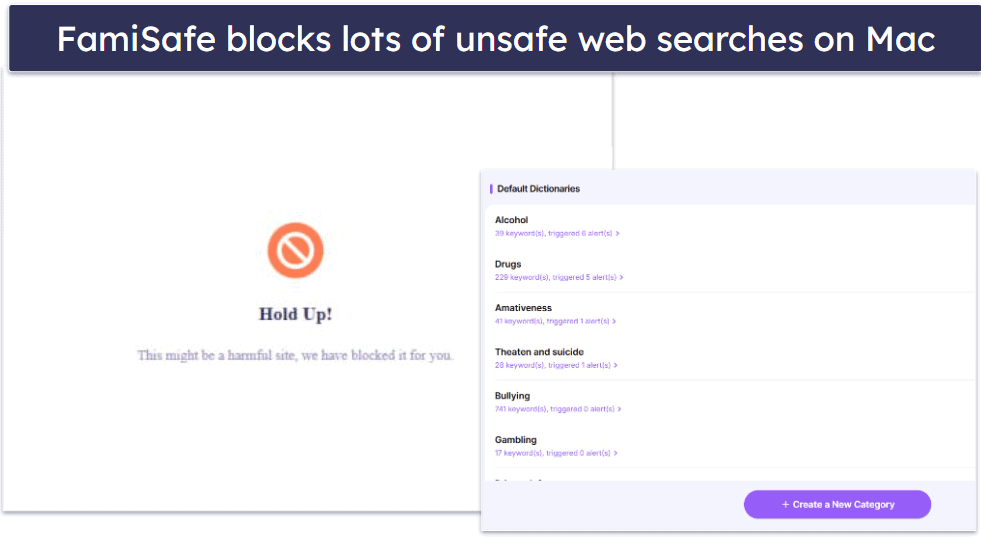
I like how its web content filter uses an extensive database of unsafe search terms and websites. You can choose from 19 categories, including Pornography, Drugs, Weapons, and get a notification every time your child tries to access a blocked website.
FamiSafe blocks apps on Mac, too. In my tests, it stopped me from opening every app I blocked on my MacBook — and I could even block access to the Apple App Store.
Its screen time controls help you manage your child’s Mac usage by allowing you to instantly block their device (which prevents them from opening any apps), set screen time limits, and schedule downtime. You can also see how much time they’ve spent on their Mac and which apps they’ve used. When their screen time is up, they get a 1-minute warning to finish what they’re doing. Just note that you can’t set time limits for individual apps on Mac, like you can with Qustodio.

FamiSafe’s plans vary in subscription length and device coverage. The Monthly plan costs $9.99 / month and covers up to 5 devices, while the Quarterly and Annual plans (priced at $6.67 / month and $4.99 / month, respectively) support up to 10 devices. All plans are backed by a 7-day money-back guarantee.
Bottom Line:
FamiSafe is a great pick for following the browser history on your child’s Mac. It has excellent web filtering, can block apps on Mac, and has comprehensive screen time options for controlling your child’s Mac usage. FamiSafe is compatible with macOS 10.1 and up and offers a 7-day money-back guarantee.
🥉3. Mobicip — Comprehensive Scheduling of Your Child’s Mac Usage

Mobicip is an excellent choice for controlling your child’s Mac screen time if they use macOS 10.15 and up. In addition to setting screen time limits and creating schedules, it offers a Vacation Mode that temporarily overrides your regular schedule. This allows you to give them more screen time with the click of a button for a set period and return to normal settings afterward.
There’s also Family Time, which instantly locks your child’s device for a specific duration, helping ensure quality time together.
Once your kid’s time is up on their Mac, they’re essentially locked out. If you want more leniency, Qustodio also gives you the option to let your kid use their Mac for homework but block access to the internet.

Mobicip lets you block apps on your child’s Mac and has customizable web filtering for more granular controls. I like how you can create custom filters based on keywords to block specific content, which is useful if you have older children. For very young children who are just getting to know the internet, there’s Whitelist-Only Mode that only lets your kid visit the sites you’ve manually approved.
Mobicip monitors Facebook on Mac, too. This feature alerts you to any inappropriate or worrisome messages on your child’s Mac, providing you with a snapshot of concerning messages.
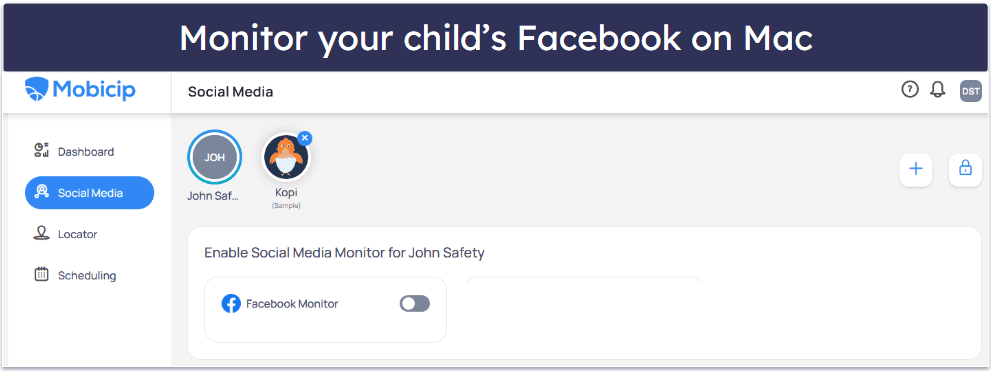
Mobicip offers 3 subscription plans: Lite, Standard, and Premium. Only the Premium plan includes social media monitoring and costs $7.99 / month. A limited free plan is available for monitoring 2 devices. Additionally, Mobicip offers a 7-day free trial and a 30-day money-back guarantee for its paid plans.
Bottom Line:
Mobicip is great for the detailed scheduling of your child’s Mac usage. The app also provides social media monitoring for Facebook and app filtering, as well as customizable web filters that make it a great pick for controlling your child’s browsing on Mac. Mobicip is compatible with macOS 10.15 and up and comes with a 30-day money-back guarantee.
4. Bark — Great Web Monitoring for Mac Devices

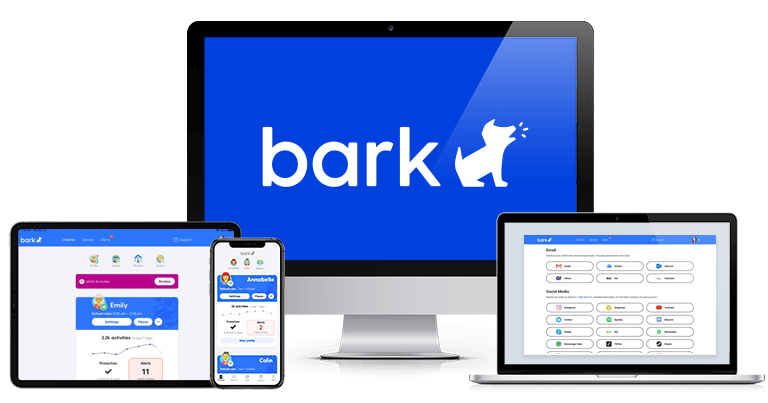
Bark is a good pick for monitoring your kid’s web searches on Mac. The parental control uses browser extensions for Chrome or Edge to check your kid’s searches and web browsing results and send you alerts about any inappropriate language — it does this even when your kid is using incognito mode. The only drawback is that Bark doesn’t work with Safari.
It’s also great for monitoring inappropriate content on social media on a Mac. Once you connect your child’s social media accounts to Bark, the app uses machine-learning algorithms to scan for 15+ categories of potential issues, such as bullying and drugs. If it detects something concerning, Bark sends you an alert with a snippet of the content in question, so you can quickly assess the situation.

Bark allows you to schedule your child’s Mac usage and filter websites. However, since it doesn’t have a native macOS app, you’ll need the Bark Home device, which is compatible with macOS 10.11 and up, to use these features. Bark Home lets you set web and app filtering rules for different times of the day, so you can decide what apps and sites they can visit when they’re at school, home, or during their free time. The downside is that Bark Home only monitors devices on the home network — and even then, you can’t set time limits for specific apps like with Qustodio.
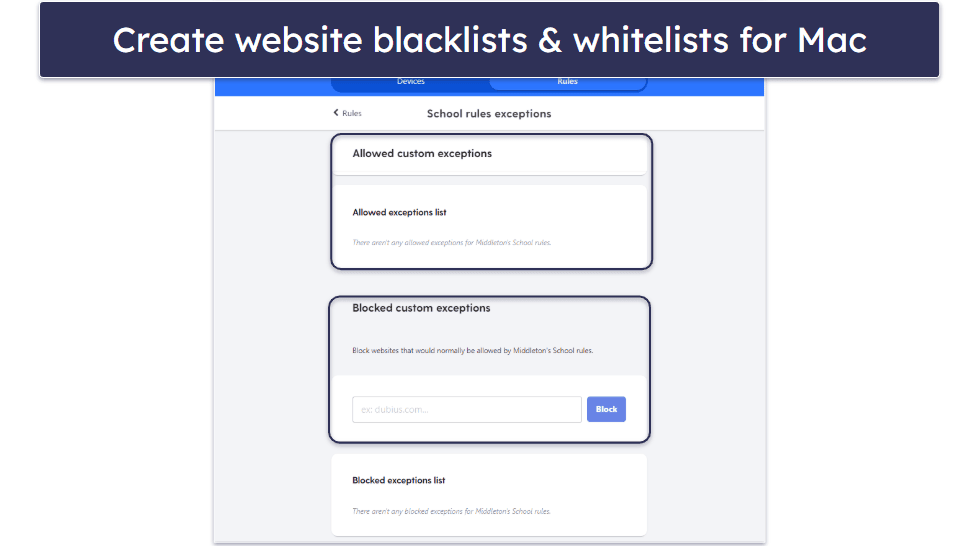
Bark Premium ($14.00 / month) gets you access to the extensions you can use on as many Macs as you need. Bark Home costs $6.00 / month. There’s no money-back guarantee for the plan but there’s a 7-day free trial.
Bottom Line:
Bark monitors website searches on your child’s Mac via browser extensions on Chrome and Edge but not Safari. It’s also great for monitoring inappropriate and dangerous content in your child’s social media accounts on Mac. It allows web filtering and setting screen time limits on macOS devices, but since it lacks a native macOS app, you can only use these features if you get its Bark Home device.
5. Kaspersky Safe Kids — Set Flexible Time Limits for Mac Usage

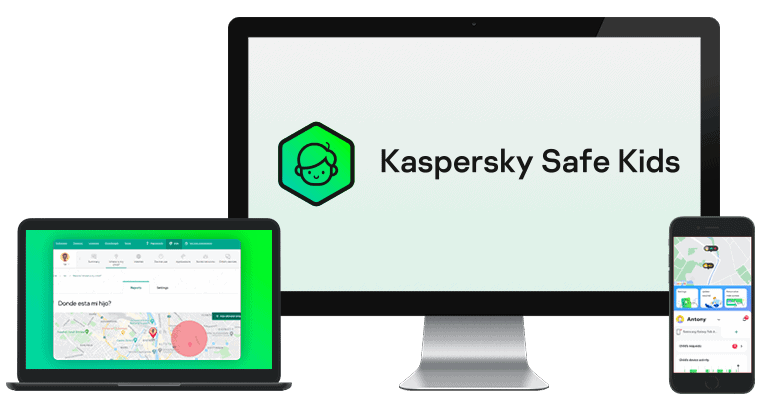
Kaspersky Safe Kids offers a flexible daily time limit tool for Mac, as it allows you to set specific times when your children can’t use their Mac devices. Most top competitors only let you set time limits in set increments, but Kaspersky allows you to set any time limit you want.
I like that you can customize how you monitor your kids’ screen time on Mac. I have the option to receive reports on their device usage, send them warnings if they reach the daily limit, or block access altogether when their time is up. Plus, I can choose specific apps that can bypass the daily time limits.
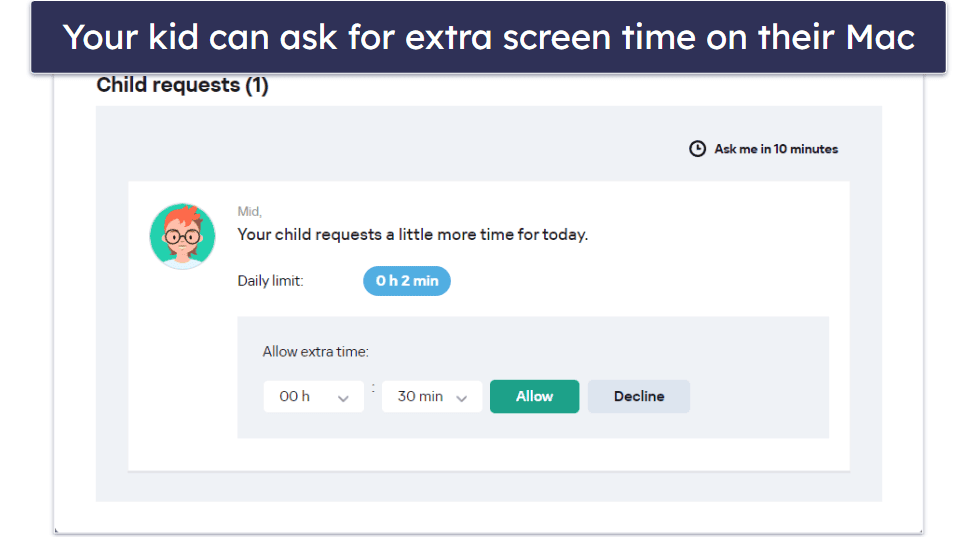
The web filtering feature on Mac is effective, with 10+ predefined site categories to choose from — if you want more, Qustodio has 25+ predefined categories. Still, I like how your kid can request access to blocked sites from their Mac, which proves useful when they need to access specific sites unintentionally blocked by the filters — especially while at school. You can also block apps by categories, such as Gambling and Violence.

Unfortunately, social media monitoring is limited to the Russian site VK. I prefer using Mobicip, as it allows social media monitoring of Facebook on Mac.
Kaspersky Safe Kids costs $28.06 / year and comes with a 30-day money-back guarantee. You also get a free 1-year subscription to Safe Kids with Kaspersky Premium, which also includes one of the top antivirus programs on the market. Unfortunately, the US government has prohibited the sale of all Kaspersky products.
Bottom Line:
Kaspersky Safe Kids offers flexible daily time limits for Mac, allowing you to set specific usage times. It has great web filtering and allows your kids to request access to blocked sites. Unfortunately, social media monitoring is limited to the Russian platform VK. The Mac app is compatible with macOS 10.11 and higher, and your kid can’t uninstall it without your permission. Kaspersky comes with a 30-day money-back guarantee.
Read our full Kaspersky Safe Kids review
Quick Comparison Table
Testing Methodology: Comparison & Ranking Criteria
To find the best parental control apps for Mac in 2026, I followed our thorough testing methodology, which includes testing all Mac parental control apps in real-life scenarios. Here’s how we evaluated and ranked each app:
- I made sure the app is macOS compatible. Every app I recommend here is able to monitor macOS devices.

- I checked each app’s feature set for Mac. Many parental control apps are compatible with Mac but only offer very few features for monitoring macOS devices, compared to the features they offer for Windows, Android, or iOS. All apps on my list provide a comprehensive set of features that are well-suited for monitoring and managing macOS devices, including web and app filters, screen time management, and social media monitoring.
- I tested for performance. The apps I recommend here have parental controls features that work as advertised on Mac devices. Plus, none of the apps slow down my Mac or drain its battery excessively.
- I evaluated every app’s user-friendliness. The parental control apps I list here make it easy to set rules and check on your kid’s Mac activities. Qustodio is particularly user-friendly, and I found it very easy to navigate.

- I compared value for money. Most of the choices on my list provide free plans or trials, affordable pricing, and a money-back guarantee.
Top Brands That Didn’t Make the Cut
- Norton Family. Comes with parental control features like screen time, scheduling, and web and app filtering. However, it doesn’t work with Mac devices.
- mSpy. A great parental control app for monitoring your child’s devices and social media accounts. However, it isn’t compatible with macOS.
- Eyezy. Offers an excellent social media monitoring feature, but it doesn’t work with Mac devices.
Frequently Asked Questions
What is the best parental control app for Mac?
The best parental control app for Mac is Qustodio. Its web filtering works on popular browsers for Mac, like Safari and Chrome, and it allows you to block unsupported ones with just 1 click. Plus, you can set daily screen time limits and schedule your child’s Mac usage, stop your kid from using specific apps on their Mac, and even monitor their YouTube activities on their Mac, including what videos they watch and what they search for.
It’s compatible with macOS versions ranging from Sierra (10.13) to the latest one and offers uninstall protection, meaning your child needs your login credentials to remove the app from their Mac.
Is there a free app available for monitoring Mac?
Yes, but I don’t recommend it. Parental control apps that are free often have limited features and can be easily bypassed or deactivated by children. Mac also has some built-in parental control features, but their usefulness is very limited. For effective monitoring of your child’s Mac usage, investing in a good parental control app is crucial. My top recommendation is Qustodio, which is compatible with Mac and offers advanced monitoring features.
Why do I need a parental control app for Mac?
Parental control apps for Mac offer a range of features to ensure your child’s online safety. They help you manage screen time, block inappropriate content, monitor internet activities, and safeguard against potential risks like cyberbullying and online predators. Although Mac offers some built-in parental controls, they’re not great. I recommend Qustodio, as it comes with advanced parental control features such as YouTube monitoring.
Can parental control apps be bypassed on Mac by tech-savvy kids?
Reputable parental control apps use strong security measures to prevent bypassing or disabling. Although no system is entirely foolproof, apps like Qustodio continually update their software to stay ahead of potential workarounds. For example, you can’t use a VPN to bypass Qustodio’s web filtering. In addition, top parental apps often come with an auto-logout feature and uninstall protection to ensure that your child can’t bypass parental control.
